





Have you ever hit “send” on an email only to spot a typo, attach the wrong file, or realize it’s going to the wrong person? In the fast-paced world of professional communication, these mishaps happen more often than we’d like. Learning how to recall an email in Outlook can save you from embarrassment, prevent miscommunication, and even protect sensitive information. Outlook, Microsoft’s popular email client, offers built-in tools for this, but success depends on factors like your setup and the recipient’s actions. This guide dives deep into the process across various versions and devices, including how to recall an email in Outlook 365, how to recall an email in Outlook Mac, and more. Whether you’re using the desktop app, web version, or mobile, we’ll cover the steps, limitations, and tips to make it work effectively.
Understanding Email Recall in Outlook
Email recall is a feature that allows you to retract or replace a message after sending it. It’s particularly useful in corporate environments where quick corrections can maintain professionalism. However, it’s not foolproof. Recall works best within the same organization using Microsoft Exchange or Microsoft 365 accounts. If the email has already been read or is sent externally, the recall might fail, leaving you with a follow-up apology instead.
The feature originated in earlier versions like Outlook 2016 and has evolved with cloud-based updates in Outlook 365. In essence, when you initiate a recall, Outlook sends a request to the recipient’s server to delete or replace the message. But if the recipient is offline or using a different client, it may not succeed. This is why understanding the requirements is crucial before attempting to recall an email in Outlook.
Key Requirements and Limitations for Recalling Emails
Before jumping into the steps, know that not every email can be recalled. Here are the main prerequisites:
- Both sender and recipient must be on the same Microsoft Exchange or Microsoft 365 organization.
- The feature is unavailable for POP/IMAP accounts or external recipients (e.g., Gmail users).
- Recall is more reliable for unread messages; if opened, it often fails.
- On mobile apps, recall was introduced in early 2025, expanding accessibility.
Limitations include potential notifications to the recipient about the recall attempt, which can draw attention to your error. Additionally, there’s no guaranteed success, and for web versions, it’s limited to a short “undo send” window rather than true recall. For deeper insights, check Microsoft’s official support for recall conditions [link to support.microsoft.com].
Step-by-Step: How to Recall an Email in Outlook on Windows Desktop
The desktop version of Outlook offers the most robust recall options. This applies to Outlook 365, the new Outlook app, and older versions like Outlook 2016. Start by ensuring you’re in the classic ribbon view for full access.
Recalling in Outlook 365 and New Outlook
- Open Outlook and navigate to the “Sent Items” folder on the left pane.
- Double-click the email you want to recall to open it in a new window.
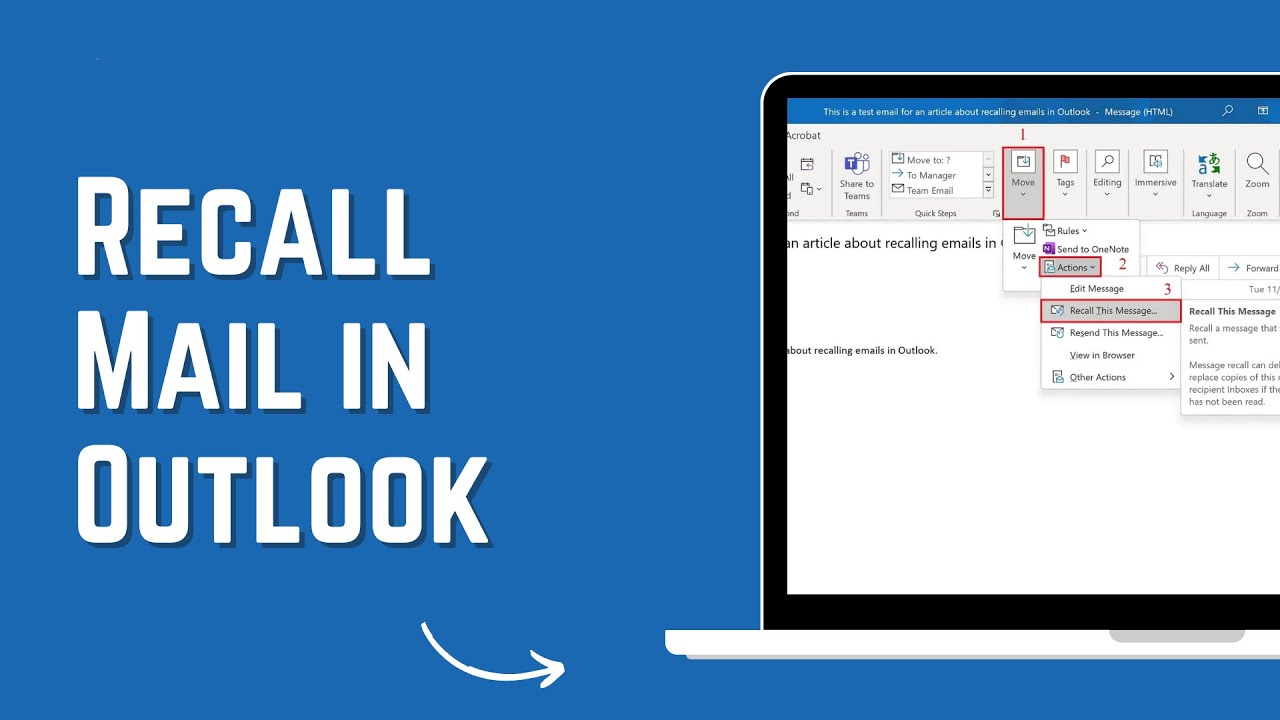
- In the ribbon, go to the “Message” tab, click the three dots (…) for “Actions,” then select “Recall This Message.”
- Choose “Delete unread copies of this message” to remove it entirely, or “Delete unread copies and replace with a new message” to edit and resend.
- Check the box for “Tell me if recall succeeds or fails for each recipient” to get a status report.
- Click “OK.” Outlook will process the request, and you’ll receive a notification email with the outcome.
This method for how to recall an email in Outlook 365 works seamlessly in internal setups. If the email is already read, you’ll get a failure notice, but it’s worth trying immediately after sending.
Recalling in Outlook 2016
For older installations like Outlook 2016, the process is similar but uses the “File” menu:
- Go to “Sent Items” and open the message.
- Click “File” > “Info” > “Resend or Recall” > “Recall This Message.”
- Select your deletion or replacement option and confirm.
Note that Outlook 2016 requires an Exchange account for this to function. If the option is grayed out, your account type might not support it switch to an Exchange profile for access.
In both cases, act fast: while there’s no strict time limit, the longer you wait, the higher the chance the recipient has seen it.
How to Recall an Email in Outlook Web (OWA)
The web version, often called Outlook Web or Outlook 365 Webmail, doesn’t offer traditional recall like the desktop app. Instead, it uses an “Undo Send” feature with a short delay:
- Log in to outlook.office.com.
- Click the gear icon for “Settings” > “Mail” > “Compose and reply.”
- Under “Undo send,” set the delay to up to 10 seconds (the maximum).
- Save changes.
- After sending an email, look for the “Undo” prompt at the bottom of the screen and click it within the delay period.
For recall message Outlook 365 web, this is the closest option. If the delay passes, you can’t recall consider using the desktop app for more control. For external links on setup, visit Microsoft’s webmail guide [link to support.microsoft.com].
How to Recall an Email in Outlook on Mac
Outlook for Mac has improved recall features, especially in recent updates. However, it’s still limited compared to Windows.
- Open Outlook and select the “Sent” folder.
- Double-click the message to open it.
- In the ribbon, click “Recall” (or go to the three dots > “Actions” > “Recall This Message” in newer versions).
- Choose to delete unread copies or replace, then confirm.
For how to recall an email in Outlook on Mac, note that it requires both parties on Exchange/365. If the button is missing, you might need to update your app or use the web version as a workaround. Older Mac versions lacked this entirely, but 2023+ updates added it for Microsoft 365 subscribers.
How to Recall an Email in Outlook App on Mobile (iPhone and Android)
Mobile recall is a newer addition, rolling out in 2025 for the Outlook app on iOS and Android.
For iPhone
- Open the Outlook app and go to the “Sent” folder.
- Tap the email to open it.
- Tap the three dots (…) in the top-right corner.
- Select “Recall” from the menu.
- Confirm the action; you’ll get a status email.
This covers how to recall an email in Outlook on iPhone. It’s handy for on-the-go fixes but only works internally.
For Android
The steps mirror iOS: Access “Sent,” open the message, tap the menu, and choose “Recall.” Ensure your app is updated to the latest version for this feature.
Mobile recall expands usability but shares the same limitations as desktop no external recalls.
How to Recall an Email in Outlook Without the Recipient Knowing
Ideally, a successful recall removes the email quietly. To minimize notice:
- Opt for “Delete unread copies” without replacement.
- Act before the recipient opens it.
However, recipients often receive a notification like “The sender has recalled this message.” True invisibility isn’t guaranteed, especially if rules forward emails automatically. For how to recall an email in Outlook without recipient knowing, the best bet is speed and using the delete option. In practice, about 50% of recalls alert the recipient, based on user reports.
Recalling Emails Outside Your Organization
Unfortunately, you can’t recall emails sent to external domains like Gmail or Yahoo. The feature relies on shared Exchange servers. Instead:
- Send a follow-up apologizing and asking them to disregard.
- Use delay rules in Outlook to pause outgoing mails for review.
For how to recall an email in Outlook outside of your organization, alternatives like encrypted email services (e.g., Virtru) offer revocation even externally. Internal policies can help prevent such sends.
Time Considerations: How Long Can You Wait to Recall?
There’s no fixed time limit for recalling in Outlook you can try days later. However, success drops if the email is read or moved. For web, it’s only seconds via undo. Mobile and desktop allow post-send attempts, but prompt action is key. How long after you send an email can you recall it on Outlook? Indefinitely, but practicality limits it to minutes for best results. How long does it take to recall an email in Outlook? Processing is near-instant, but status emails arrive within hours.
Comparison of Recall Features Across Outlook Platforms
To help choose the right method, here’s a table summarizing key aspects:
| Platform | Recall Method | Time Limit | Works Externally? | Notification to Recipient? | Best For |
|---|---|---|---|---|---|
| Windows Desktop (365/2016) | Actions > Recall Message | No strict limit | No | Often yes | Internal corporate use |
| Outlook Web | Undo Send (settings delay) | Up to 10 seconds | No | No, if within delay | Quick web access |
| Mac Desktop | Ribbon > Recall | No strict limit | No | Often yes | Apple users in Exchange |
| Mobile App (iOS/Android) | Menu > Recall | No strict limit | No | Often yes | On-the-go corrections |
| Classic Outlook | File > Resend/Recall | No strict limit | No | Often yes | Legacy setups |
FAQ: Common Questions About Recalling Emails in Outlook
How do I recall an email already sent in Outlook?
Follow the desktop steps: Go to Sent Items, open the message, and select Recall This Message.
How to recall an email in Outlook without recipient knowing?
Choose delete unread copies quickly; however, a notice may still appear.
How long after you send an email can you recall it on Outlook?
No set limit, but success depends on if it’s unread.
Can I recall an email after sending?
Yes, via the recall feature in supported versions.
How to recall an email in Outlook Classic?
Use File > Info > Resend or Recall.
How long does it take to recall an email in Outlook?
The request is sent immediately, with status updates following shortly.
Recall email Outlook web?
Use the Undo Send delay in settings for up to 10 seconds.
Conclusion
Mastering how to recall an email in Outlook empowers you to handle slip-ups gracefully, from fixing errors in Outlook 365 to quick mobile recalls on iPhone. Remember, prevention is best double-check before sending, or set delays. If you’re dealing with frequent external sends, explore add-ons for better control. Ready to try? Open Outlook now and test on a safe internal email. For more tips, subscribe to our newsletter or visit Microsoft’s support hub for updates. Your email game just got stronger!