






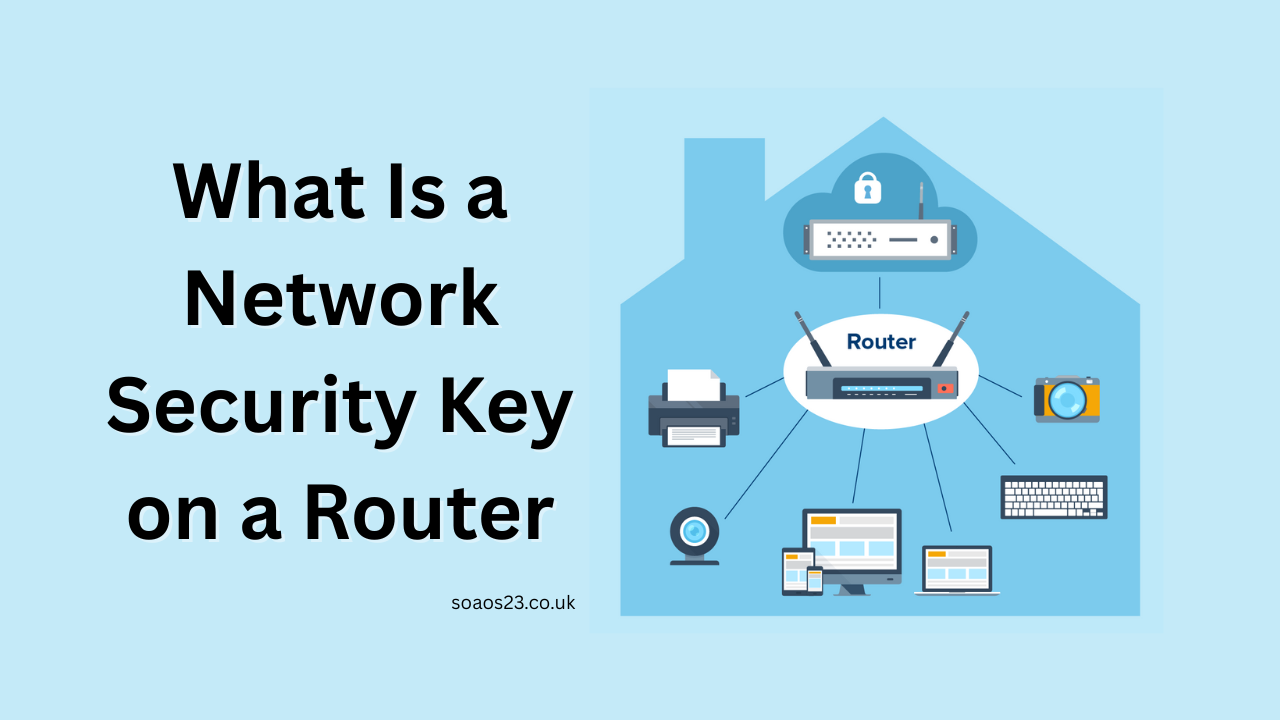
In today’s connected world, almost every home and office relies on Wi-Fi to stay online. When you try to connect a new phone, laptop, or smart TV to your wireless network, you’re almost always asked to “enter the network security key.” Most people simply call it the Wi-Fi password, but the term “network security key” is what Windows, Android devices, and many routers officially use.
Understanding exactly what a network security key on a router is and where to find it saves hours of frustration and helps you keep your internet connection secure. This comprehensive guide explains everything in plain English, covers every common scenario (Windows 7, Windows 10/11, Android phones, laptops, hotspots), and answers the questions people actually search for on Google.
What Exactly Is a Network Security Key?
A network security key is the password or passphrase that protects your Wi-Fi network from unauthorized access. It is used to encrypt the data traveling between your devices and the router so that neighbors, passersby, or hackers can’t spy on your internet traffic or use your bandwidth.
There are three main types of network security keys you’ll encounter today:
- WPA2-PSK (AES) – Still the most common and very secure
- WPA3-PSK (AES) – Newer, stronger, and increasingly standard on routers made after 2020
- WPA2/WPA3 Mixed Mode – Allows both old and new devices to connect
Older types like WEP and WPA-TKIP are now considered insecure and should never be used.
In everyday language: yes, the network security key is the same as the Wi-Fi password. The only difference is terminology router manufacturers and Android tend to say “password” or “passphrase,” while Windows and some setup screens say “network security key.”
Is the Network Security Key the Same as the Password?
Yes 99% of the time.
The only exception is very old WEP networks that used a hexadecimal key (e.g., 10 or 26 hex characters) instead of a readable passphrase. Virtually no one uses WEP anymore because it was cracked years ago.
For modern WPA2/WPA3 networks, the network security key you type when connecting is identical to the Wi-Fi password printed on the router sticker.
What Does a Network Security Key Look Like?
A typical modern network security key is:
- 8–63 characters long
- Can contain letters (upper/lowercase), numbers, and special characters
- Often randomly generated by the manufacturer (example: X7pL9mK2qW3zT8vR4nJ6yH)
Example of real keys found on popular router stickers in 2024–2025:
- TP-Link: a1B2c3D4e5F6g7H8
- Netgear: purplemonkeydishwasher2024
- Spectrum/Comcast/Xfinity: baseballvictory77
- Google Nest Wi-Fi: radiantkoala549
Some routers still use simple defaults like “admin” or “password,” but every major ISP and manufacturer now ships with strong, unique keys.
Where to Find the Network Security Key on Your Router (The Easiest Method)
99% of home routers have the network security key printed on a sticker on the bottom or back of the router itself.
Look for any of these labels:
- Wi-Fi Password
- Network Key
- Security Key
- Passphrase
- WPA Key
- Pre-shared Key (PSK)
If you (or someone else) changed the password after setup, the sticker will show the original factory password, which will no longer work. In that case, see the sections below.
How to Find Network Security Key on Windows 10 and Windows 11
Method 1 – Quickest (if already connected on a Windows PC):
- Click the Wi-Fi icon in the taskbar
- Right-click your network name → Go to Properties
- Click the Security tab
- Check “Show characters” → the password appears in the Network security key field
Method 2 – Using Command Prompt:
- Open Command Prompt as administrator
- Type: netsh wlan show profile name=”YourNetworkName” key=clear (replace YourNetworkName with your actual SSID)
- Look under Security settings → Key Content = your password
What Is Network Security Key on Router Windows 7
The process on Windows 7 is almost identical:
- Click the network icon in system tray
- Open Network and Sharing Center
- Click your Wi-Fi network name
- Click Wireless Properties
- Security tab → Show characters
Windows 7 is no longer supported by Microsoft (ended January 2020), so if you’re still using it, seriously consider upgrading for security reasons.
What Is a Network Security Key on a Laptop (Any Brand)
The steps depend on the operating system, not the laptop brand (Dell, HP, Lenovo, MacBook, etc.).
- Windows → use the Windows methods above
- macOS → open Keychain Access → search for your network name → check “Show password”
- Chromebook → Settings → Network → Wi-Fi → Known networks → your network → Password
Where to Find Network Security Key on Phone
Android Phones & Tablets (Samsung, Google Pixel, OnePlus, etc.)
If your phone is already connected:
- Go to Settings → Network & internet → Internet
- Tap your Wi-Fi network
- Tap Share (or Password on some versions)
- Verify with fingerprint/face/PIN
- The password appears (sometimes as a QR code)
On Android 10 and newer, this works on virtually every device.
How to Find Network Security Key on My Android Phone (Older Versions)
Android 9 and earlier: You cannot view saved Wi-Fi passwords without root. You must check the router sticker or use a Windows PC that is connected.
iPhone & iPad
Apple removed the ability to view saved Wi-Fi passwords in iOS 16+. You now need:
- A Mac signed into the same iCloud account (Keychain), or
- Check the router sticker, or
- Reset the router password
Network Security Key for Hotspot (Android & iPhone)
When you turn your phone into a mobile hotspot, you create a new Wi-Fi network and you set its own network security key.
Android Hotspot
Settings → Network & internet → Hotspot & tethering → Wi-Fi hotspot → Password = your hotspot network security key (usually WPA2 or WPA3 by default)
iPhone Personal Hotspot
Settings → Personal Hotspot → Wi-Fi Password
What is network security key for hotspot? It is simply the password you (or the manufacturer) chose when setting up the hotspot. It is not the same as your home router’s key unless you deliberately made it identical.
Comparison of Common Wi-Fi Security Types (2025)
| Security Type | Year Introduced | Key Length | Security Level | Still Recommended? | Common on Routers Today |
|---|---|---|---|---|---|
| WEP | 1999 | 64/128-bit | Very Weak | No | Almost none |
| WPA (TKIP) | 2003 | 256-bit | Weak | No | Rare |
| WPA2-PSK (AES) | 2004 | 256-bit | Strong | Yes (still excellent) | Most routers |
| WPA2/WPA3 Mixed | 2018 | 256-bit | Very Strong | Yes | Most new routers |
| WPA3-Personal | 2018 | 256-bit+ | Strongest | Yes (best choice) | All routers 2021+ |
How to Change Your Network Security Key (Recommended Every 1–2 Years)
- Type your router’s IP address in a browser (usually 192.168.0.1, 192.168.1.1, or 10.0.0.1)
- Log in (default credentials are often admin/admin or admin/password check sticker)
- Go to Wireless → Wireless Security or Wi-Fi Settings
- Change the passphrase to something strong (20+ characters recommended)
- Save/Apply → all devices will disconnect and need the new key
Common Problems & Solutions
“Enter the network security key” message keeps appearing wrong → You’re typing it incorrectly (case-sensitive), or someone changed the password.
Forgot password and can’t find sticker → Press the reset button on the router for 10–15 seconds to restore factory settings (this erases all custom settings).
Printer or smart TV won’t accept the password → These devices sometimes don’t support WPA3 yet set router to WPA2/WPA3 mixed mode.
FAQ – Frequently Asked Questions
Q: What is network security key for hotspot?
A: It is the password you set (or the default one) when you enable mobile hotspot on your phone. Android usually generates a strong random one; iPhone lets you set it manually.
Q: What is a network security key on a laptop?
A: It is the same Wi-Fi password you use to connect the laptop to any network. You can view it on a Windows laptop using the methods described above.
Q: Where to find network security key on phone?
A: On Android 10+: Settings → Network & internet → Internet → your network → Share. On iPhone: only visible on the router or via iCloud Keychain on a Mac.
Q: Is the network security key the same as the password?
A: Yes, for modern routers (WPA2/WPA3). They are identical.
Q: How to find network security key on my Android phone?
A: Settings → Network & internet → Internet → tap your network → Share (with fingerprint verification).
Q: What does a network security key look like? A: Usually 8–63 characters, mixture of letters, numbers, and symbols. Example: kT9mP2xL7vR4wQ8zY6nJ
Q: What is network security key on router Windows 7 / Windows 10?
A: Both operating systems show it in the same place: Network and Sharing Center → your connection → Wireless Properties → Security tab → Show characters.
Final Thoughts
Your network security key is the single most important defense for your home internet. Keeping it strong, changing it periodically, and upgrading to WPA3 makes it extremely difficult for anyone to break in.
If you’ve lost your key, start with the router sticker that solves it for most people. If it’s been changed, use a connected Windows PC or Android phone to reveal it quickly.
Stay safe online, use strong unique keys, and enjoy fast, secure Wi-Fi.