



LinkedIn company pages serve as vital hubs for businesses to build brand presence, engage audiences, and attract talent. However, there comes a time when you need to delete LinkedIn company page due to rebranding, closure, or strategic shifts. Understanding the process ensures you handle it correctly without unnecessary complications.
This comprehensive guide walks you through the steps for a how to delete LinkedIn company page permanently approach. It covers requirements, implications, and alternatives, plus related topics like creating pages. Whether managing a small startup or established brand, these insights help you make informed decisions.
Why You Might Need to Delete a LinkedIn Company Page
Business needs evolve. You might merge operations, discontinue a brand, or simplify online footprint. Deactivating (LinkedIn’s version of deletion) removes visibility while addressing admin responsibilities.
Key reasons include:
- Company restructuring or shutdown.
- Avoiding maintenance costs for inactive pages.
- Rebranding under a new entity.
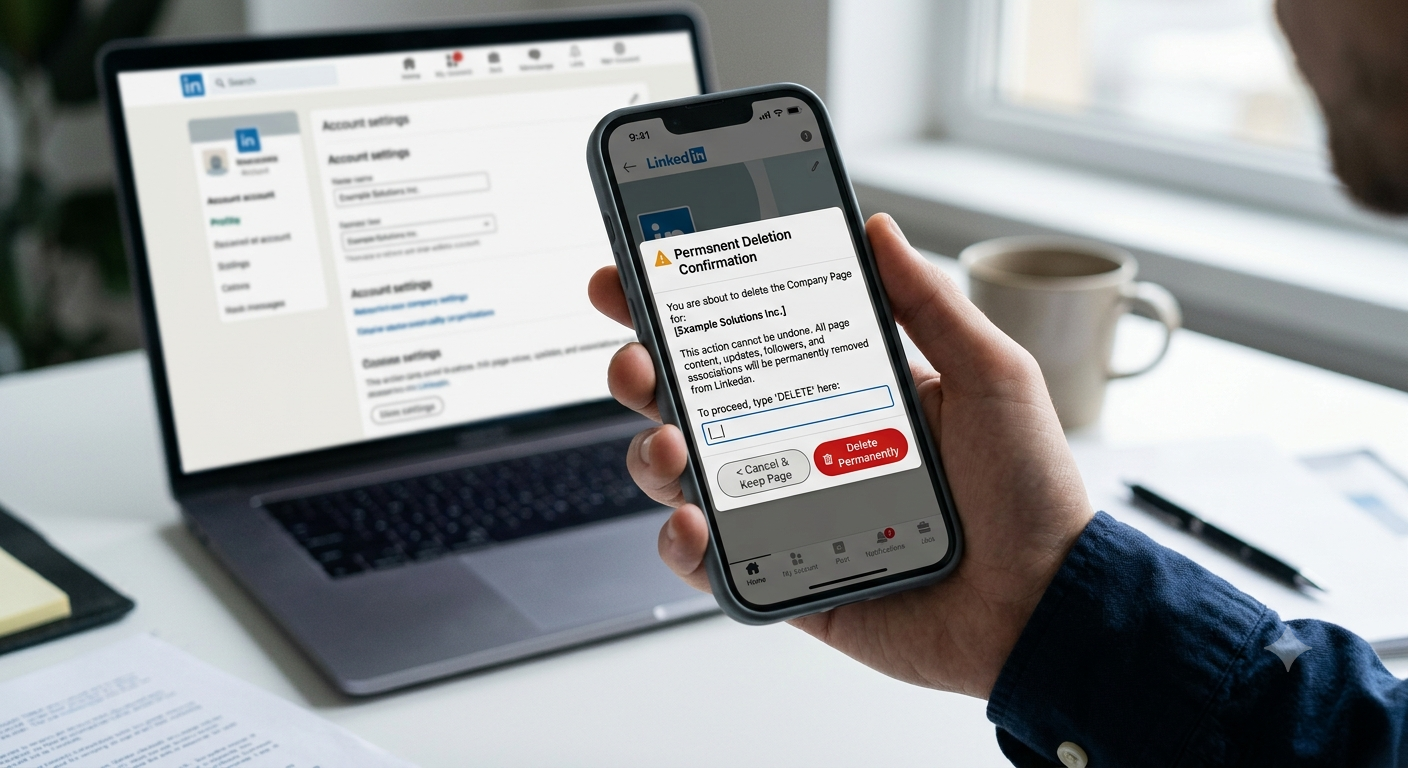
LinkedIn does not offer true permanent deletion for company pages. Instead, super admins can deactivate them, hiding the page from searches and members. This effectively achieves the goal of removal in most cases.
Prerequisites Before Deleting Your LinkedIn Company Page
You must meet specific criteria:
- Be a super admin of the page.
- The page must be active.
- No pending apps or integrations required for other services.
- Logged into the correct LinkedIn account.
If multiple admins exist, coordinate to ensure smooth transition or removal. Only super admins can initiate deactivation.
Pro Tip: Review all content, followers, and associated data first. Export any valuable analytics or posts if needed.
Step-by-Step Guide: How to Delete LinkedIn Company Page
Follow these steps from the LinkedIn platform:
- Log in and Access Super Admin View: Sign in to LinkedIn. Navigate to your LinkedIn company page via search or the Work icon.
- Switch to Admin Mode: Click the admin tools or directly enter the super admin view (often via “Admin” dropdown).
- Go to Settings: In the left menu, click Settings.
- Select Deactivate: Scroll to find Deactivate page (or Deactivate showcase page). Click it.
- Confirm Implications: Read the details carefully. Check the confirmation box acknowledging the action.
- Deactivate: Click Deactivate. A confirmation message appears once successful.
The process is straightforward on desktop. Mobile steps may vary slightly use browser view for best results. Always double-check you’re on the correct page.
What Happens When You Delete a Company Page on LinkedIn?
Deactivation has several permanent effects:
- The page disappears from LinkedIn search results and is hidden from members.
- Followers lose access; the page URL may become available for reuse.
- Employee profiles listing the company show a placeholder logo and broken link (no active page connection).
- Analytics, posts, and engagement history become inaccessible.
- You cannot reactivate easily; it’s largely irreversible without LinkedIn support intervention in rare cases.
Data tied to profiles (e.g., past experience) persists but loses functionality. Consider notifying stakeholders beforehand.
How do I delete my LinkedIn company page permanently? Deactivation is the closest option. True deletion isn’t available to prevent abuse, but it achieves practical removal.
How to Remove a Business Page from Your LinkedIn (As Admin or Employee)
If you’re not deactivating the entire page but removing your association:
- Remove yourself as admin: Go to Settings > Manage admins > Delete your role.
- Update profile experience: Edit your profile to remove or update the position linked to the company.
How do I remove a business page from my LinkedIn? This usually means removing admin access or profile associations rather than full page deletion.
For how to remove yourself from LinkedIn Page admin mobile, use the LinkedIn app: Navigate to the page, access admin settings, and manage roles. Desktop is often easier for complex actions.
How to Create a LinkedIn Company Page (For Context)
Before deletion, many wonder about creation. Here’s a quick overview:
- Log into your personal LinkedIn profile.
- Click the For Business or Work icon.
- Select Create a Company Page.
- Choose type (Company, Showcase, etc.).
- Fill in details: Name, industry, website, logo.
- Verify authorization and publish.
How to create LinkedIn company page without personal profile: Not possible. LinkedIn requires a personal profile for verification and admin setup. You cannot bypass this.
Create LinkedIn company page or create a LinkedIn company page follows the same verified process. Optimize with proper LinkedIn company page banner size (typically 4200 x 700 pixels for cover images check current specs for best results).
Common Issues and Troubleshooting
- No Deactivate Option: Ensure super admin status. Remove conflicting integrations.
- Multiple Admins: Transfer or remove others first if needed.
- Error Messages: Contact LinkedIn support with page details.
- After Deactivation: Monitor employee profiles for updates. The URL might free up later.
For LinkedIn Service Page admin view or other variants, similar settings apply under the respective admin panels.
How do I delete a company on LinkedIn? Use the deactivation process outlined. It’s the standard method for company, showcase, or listing pages.
Table: Key LinkedIn Company Page Actions Comparison
| Action | Requirements | Reversibility | Impact on Followers/Data | Best Use Case |
|---|---|---|---|---|
| Deactivate Page | Super Admin | Mostly No | Hides page, breaks links | Full removal/closure |
| Remove Self as Admin | Admin Access | Yes | Minimal to page | Handover management |
| Update Profile Position | Personal Profile Edit | Yes | Updates individual experience | Personal cleanup |
| Create New Page | Personal Profile | N/A | Builds new audience | Rebranding or new venture |
This table highlights options for different scenarios involving LinkedIn company page management.
Best Practices and Alternatives to Deletion
Instead of immediate deactivation:
- Archive content or convert to showcase page.
- Rebrand the existing page.
- Maintain minimally if it has strong backlinks or SEO value.
Always back up important data. Consider LinkedIn login best practices for security during transitions, such as updating passwords and reviewing connected apps.
For ongoing management, regularly audit admins and content to avoid future deletion needs.
FAQ: Deleting and Managing LinkedIn Company Pages
How do I delete my LinkedIn company page permanently?
As a super admin, follow the Settings > Deactivate page process. Note that LinkedIn uses deactivation, which hides the page permanently in practice.
What happens when you delete a company page on LinkedIn?
The page becomes invisible in searches, links break on profiles, and historical data is largely lost to public view. The URL may become reusable.
How do I remove a business page from my LinkedIn?
Remove admin access via Manage admins or edit your profile experience section to unlink the company.
Can I create LinkedIn company page without personal profile?
No. A personal LinkedIn profile is required for creation and initial administration.
How to remove yourself from LinkedIn Page admin mobile?
Access the page in the app, go to admin settings, and remove your role if you have sufficient permissions.
What is the LinkedIn company page banner size?
Recommended cover image dimensions are around 4200 x 700 pixels (confirm latest in LinkedIn help for optimal display).
How do I delete a company on LinkedIn?
Deactivate via super admin settings. This applies to standard company pages.
Conclusion: Make Informed Decisions for Your LinkedIn Presence
Learning how to delete LinkedIn company page permanently (via deactivation) empowers you to manage your digital assets responsibly. Whether closing a chapter or streamlining operations, follow the steps carefully, understand the impacts, and plan ahead for employee profiles and branding.
If your needs have changed, consider re-evaluating your overall LinkedIn strategy. For creation, always start with a strong personal profile foundation. Take action today log in, review your pages, and ensure your LinkedIn presence aligns with current goals.