 11
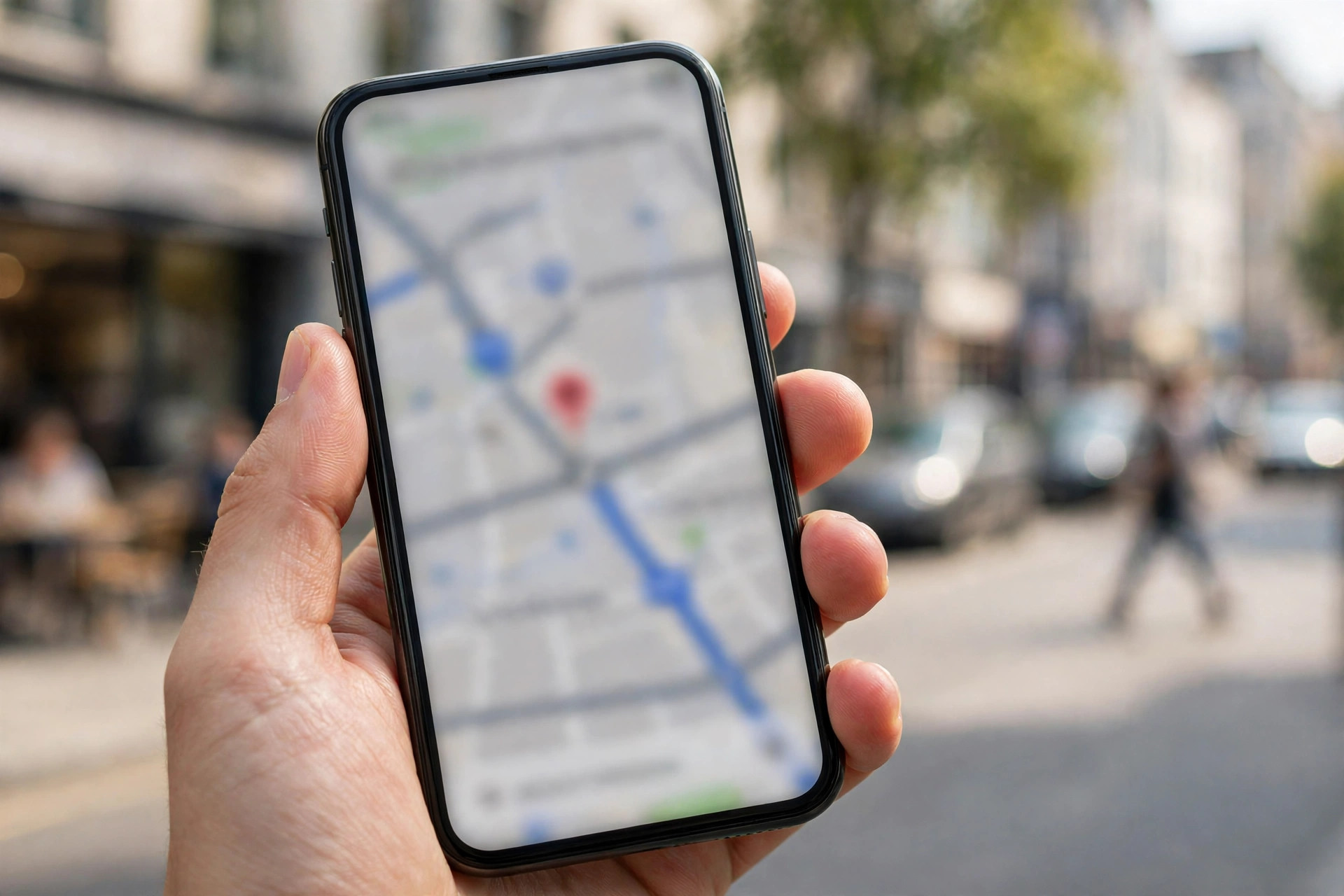
Sharing your location on an iPhone is one of the easiest ways to help friends and family find you, coordinate meetups, or let loved ones know you’re safe. Whether you’re meeting someone at a busy mall, tracking your child’s location, or sharing your live location during a road trip, Apple’s built-in tools make the process quick and secure.
If you’ve been wondering how to share location on iPhone, you’re in the right place. Modern iPhones offer multiple ways to share your location, including Find My, Messages, Apple Maps, Google Maps, and third-party apps like WhatsApp. Each method serves a different purpose, from sharing your live location for a few hours to permanently allowing trusted family members to see where you are.
This comprehensive guide explains every method step by step, covers iPhone compatibility, troubleshooting tips, privacy settings, and answers the most common questions users ask.
Location sharing isn’t just about convenience it also improves safety and communication.
Common reasons include:
Apple encrypts location data and gives you full control over who can view your location and for how long.
Before learning how to share location on iPhone, make sure:
Before using any location-sharing feature:
Find My is Apple’s official location-sharing feature.
Open the Find My app.
Tap the People tab.
Select Start Sharing Location.
Choose the contact you want to share with.
Select one of these options:
Tap Send.
The selected person will now be able to view your live location.
The Messages app integrates directly with Find My.
This method is perfect for quickly sharing your location with someone you’re already texting.
Sometimes you only want to send your current location instead of continuous tracking.
The recipient receives a map link showing your location at that moment.
Google Maps works well when sharing with Android users.
Google Maps updates your live location in real time.
WhatsApp supports live location sharing between iPhone and Android.
Unlike Apple Maps, WhatsApp continuously updates your movement.
| Method | Live Location | Current Location | Works with Android | Best For |
|---|---|---|---|---|
| Find My | ✅ Yes | ✅ Yes | ❌ No | Family & trusted contacts |
| Messages | ✅ Yes | ✅ Yes | ❌ iMessage only | Apple users |
| Apple Maps | ❌ No | ✅ Yes | Limited | One-time location |
| Google Maps | ✅ Yes | ✅ Yes | ✅ Yes | Mixed devices |
| ✅ Yes | ✅ Yes | ✅ Yes | Friends & family |
The methods in this guide work on most modern iPhones.
| Device | Supported |
| iPhone SE (2nd Gen & newer) | ✅ |
| iPhone 11 Series | ✅ |
| iPhone 12 Series | ✅ |
| iPhone 13 Series | ✅ |
| iPhone 14 Series | ✅ |
| iPhone 15 Series | ✅ |
| iPhone 16 Series | ✅ |
Older iOS versions may have slightly different menu layouts, but the overall process remains similar.
If you no longer want someone to see your location:
Your location immediately becomes unavailable to that person.
Apple Family Sharing makes location sharing automatic.
Each family member can decide whether to share their location.
If you don’t want permanent sharing:
Choose:
This option is available through Find My and Messages.
Troubleshooting: Why Can’t I Share My Location?
If you’re having trouble with how to share location on iPhone, try these solutions.
Go to:
Settings → Privacy & Security → Location Services
Ensure it’s turned on.
2. Check Internet Connection
Location sharing requires:
Poor connectivity can prevent updates.
Settings → Apple ID → Find My
Turn on:
Go to:
Settings → General → Software Update
Install the latest version.
Many temporary glitches disappear after restarting the device.
Restrictions may block location sharing.
Navigate to:
Settings → Screen Time → Content & Privacy Restrictions
Refreshing your Apple account often fixes syncing problems.
Sharing your location should always be done carefully.
Follow these recommendations:
Never share your live location with strangers.
Open Find My occasionally to see who has access.
If you’re sharing for a concert or meetup, stop sharing afterward.
Software updates include security improvements.
Enable:
Use secure networks for better privacy.
Apple’s ecosystem provides several advantages:
If you manage a technology website, consider linking this article to related content such as:
These internal links improve navigation and support SEO.
For additional information, you can reference official resources such as:
Using authoritative sources enhances trust and helps readers access official guidance.
Yes. You can use Google Maps or WhatsApp to share your live or current location with Android users.
Live location sharing uses GPS and can increase battery consumption, especially over long periods. Using Low Power Mode may help extend battery life.
No. Apple requires your explicit permission before another person can view your live location. You can stop sharing at any time.
This usually happens when Location Services or Find My is disabled, or when you’re not signed in to your Apple ID.
Yes. Find My and Messages allow you to share your location for one hour, until the end of the day, or indefinitely.
Yes. Modern iPhones use GPS, Wi-Fi, Bluetooth, and cellular signals to provide highly accurate location information, though accuracy may vary indoors or in areas with weak signals.
Open the Find My app, select the contact, and tap Stop Sharing My Location. The change takes effect immediately.
Learning how to share location on iPhone is simple once you know which method best fits your needs. Whether you’re using Find My for continuous location sharing with family, Messages for quick updates, Apple Maps to send your current position, or apps like Google Maps and WhatsApp for cross-platform sharing, iPhone offers secure and flexible options.
Remember to enable Location Services, keep your iPhone updated, and review your sharing settings regularly to protect your privacy. By following the step-by-step instructions and best practices in this guide, you’ll be able to share your location confidently while staying in control of who can see it and for how long.