






LinkedIn remains the premier professional network, connecting businesses with talent, clients, and industry leaders. A well-optimized linkedin business page serves as your company’s digital headquarters, enabling content sharing, lead generation, and brand authority building. Whether you’re a startup founder or marketing manager, learning how to create a linkedin business page is a foundational step for B2B success in 2026.
This detailed guide walks you through every step of how to set up a linkedin business page, from prerequisites to advanced optimization. You’ll also discover best practices for visuals like linkedin business page banner size, content strategies, and common questions answered.
Why Every Business Needs a LinkedIn Business Page
A linkedin business page (also called a Company Page) provides credibility, expands reach beyond personal networks, and unlocks powerful tools like LinkedIn Ads and analytics. Unlike personal profiles, pages support multiple admins and focus on organizational storytelling.
Create linkedin business page efforts yield benefits such as improved search visibility on the platform, easier recruitment, and direct engagement with decision-makers. It’s free to start, making it accessible for businesses of all sizes.
Prerequisites Before You Create a LinkedIn Business Page
You must have a personal LinkedIn profile in good standing:
- Account at least several days old.
- Completed profile with connections.
- Intermediate or higher profile strength.
Does a LinkedIn business page have to be linked to a personal account?
Yes creation requires a personal profile with admin rights. You cannot create linkedin company page without personal profile. This ensures accountability.
LinkedIn login via your personal credentials is the entry point. For teams, plan admin roles carefully.
Step-by-Step: How to Make a LinkedIn Business Page
Follow these instructions on desktop (mobile creation is limited):
- Log into your personal LinkedIn account.
- Click the For Business icon in the upper-right corner.
- Scroll and select Create a Company Page.
- Choose the page type: Company, Showcase Page, or Educational Institution.
- Enter required details: Company name, website, industry, company size, and type.
- Upload logo and banner.
- Verify your authority by checking the confirmation box.
- Publish the page.
After creation, customize further under Admin tools.
How do I create a business page on LinkedIn? The process above covers it. For how to create a company Page on LinkedIn mobile, options are restricted use desktop for full setup.
Optimizing Your New LinkedIn Business Page
Once live, focus on these elements:
Profile Basics
- Logo: Square image, recommended 400×400 pixels.
- About Section: Compelling description with keywords, values, and call-to-actions.
- Featured Section: Highlight key content, offers, or updates.
Visual Assets
LinkedIn business page banner size recommendations:
- Primary cover image: 1128 x 191 pixels (or upload larger at 4200 x 700 for sharpness, max 3MB).
- Use high-resolution PNG/JPG.
- Place key text and logos in the safe central area to avoid cropping on mobile.
Consistent branding across logo and banner builds recognition.
Content Strategy: The 4 1 1 Rule on LinkedIn
What is the 4 1 1 rule on LinkedIn? A content framework suggesting for every 6 posts: 4 educational or industry-related (value to audience), 1 promotional (your offers), and 1 personal/humanizing (behind-the-scenes or team stories). This promotes engagement over hard selling.
Post regularly, use hashtags, and encourage comments.
Advanced Features and LinkedIn for Business
After setup:
- Enable LinkedIn Ads for targeted campaigns.
- Add Showcase Pages for specific products.
- Integrate with LinkedIn Premium for deeper insights.
- Monitor analytics for reach and engagement.
LinkedIn for business tools help with recruitment, sales navigator, and learning opportunities.
Compare to other platforms like Facebook business Page LinkedIn excels in professional contexts.
Common Challenges and Solutions
- Verification delays: Ensure accurate company details.
- Low engagement: Consistent value-driven posting using the 4-1-1 rule.
- Admin management: Assign roles wisely.
- Mobile optimization: Test how your page appears on phones.
Regular updates keep the page dynamic.
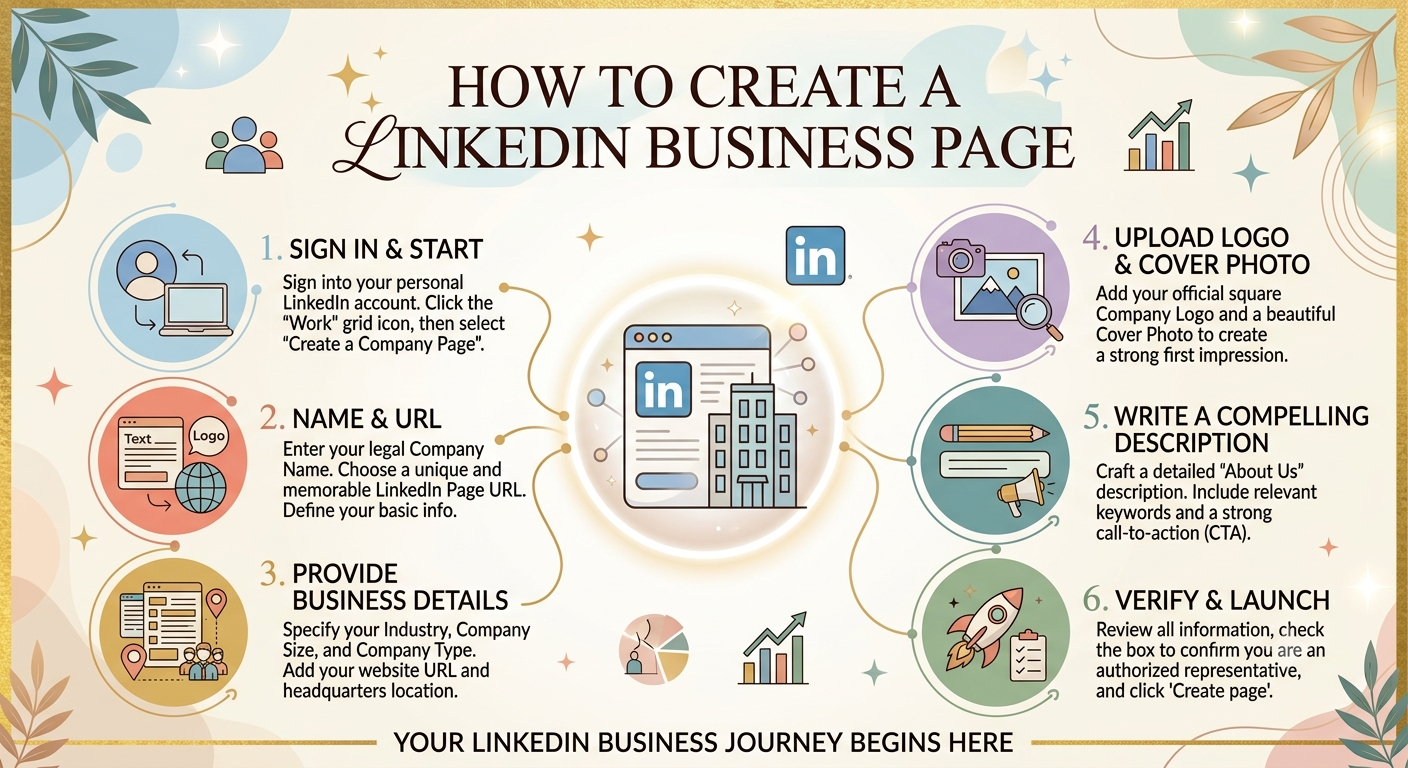
Table: Key LinkedIn Business Page Specs and Best Practices
| Element | Recommended Size | Tips | File Format & Limits |
|---|---|---|---|
| Logo | 400 x 400 pixels | Square, clear branding | PNG/JPG, < 3MB |
| Banner/Cover Image | 1128 x 191 (or 4200 x 700 upload) | Central focus, professional | PNG/JPG, < 3MB |
| About Section | Up to 2,600 characters | Keywords, story, CTA | Text |
| Posts | Images: 1200 x 627 | High quality, mobile-friendly | Various |
This overview ensures your set up a linkedin business page looks polished.
FAQ: How to Create a LinkedIn Business Page
1. Is it free to make a LinkedIn business page?
Yes, creating and maintaining a basic Company Page is free. Paid features like ads or Premium are optional.
2. How to create a LinkedIn business page step by step?
Log in, go to For Business > Create a Company Page, fill details, upload visuals, and publish.
3. Can I make a LinkedIn business page without a personal account?
No, a personal profile is required for creation and administration.
4. What are the ideal linkedin business page banner size dimensions?
Recommended display is 1128 x 191 pixels. Upload larger for best quality.
5. How long does it take to create a linkedin business page?
The initial setup takes 10-15 minutes, but optimization is ongoing.
6. What should I post on my new LinkedIn business page?
Follow the 4-1-1 rule: Mix educational content, promotions, and personal stories.
7. How do I manage multiple admins on a LinkedIn company page?
Go to Admin tools > Page admins to add or remove team members.
Conclusion
Mastering how to create a linkedin business page opens doors to professional networking, content distribution, and growth opportunities. Follow the steps, optimize visuals and content, and treat the page as a living asset with regular activity.