







In today’s digital world, our lives revolve around photos, documents, emails, and backups stored across devices. Apple iCloud serves as the seamless hub that keeps everything synchronized, secure, and accessible. Whether you’re managing thousands of family memories in iCloud Photos, organizing work files in iCloud Drive, or handling iCloud Mail and iCloud email, effective management prevents storage headaches and data loss.
This guide delivers practical, actionable iCloud photos, files, and data management tips to help you maximize space, boost security, and streamline your Apple ecosystem. From iCloud login basics to advanced cleanup strategies like how to delete old backups on iCloud, you’ll gain deep insights for long-term efficiency.
Why Effective iCloud Management Matters
Apple iCloud integrates deeply with iPhone, iPad, and Mac, automatically backing up data, syncing photos, and enabling features like Find My. However, the free 5GB storage fills quickly with high-resolution photos, videos, and device backups. Poor management leads to “storage full” warnings, slower devices, and potential data risks.
Proper management saves money on upgrades, protects privacy, and ensures quick access to important files. Users searching for iCloud sign in, iCloud login email, or iCloud login photos often seek reliable ways to organize their digital lives without frustration.
Getting Started: iCloud Sign In and Basic Setup
Begin with a secure iCloud sign in. Visit icloud.com or use Settings on your Apple device.
Steps for iCloud Login:
- Go to Settings > [Your Name] on iOS/iPadOS.
- Tap Sign In or ensure you’re logged in with your Apple ID (iCloud login email).
- Enable iCloud Drive, Photos, and iCloud Backup.
For web access, use iCloud sign in at icloud.com. Enable two-factor authentication for security essential for protecting Apple iCloud data.
Pro Tip: If you forget credentials, use Apple’s account recovery. Avoid third-party sites mimicking iCloud login to prevent phishing.
Many users also search for iCloud login sign up create a free Apple ID directly on apple.com or during device setup.
Mastering iCloud Photos Management
iCloud Photos stores your entire library in the cloud, syncing across devices. It consumes significant space but offers powerful organization tools.
Key Tips for iCloud Photos:
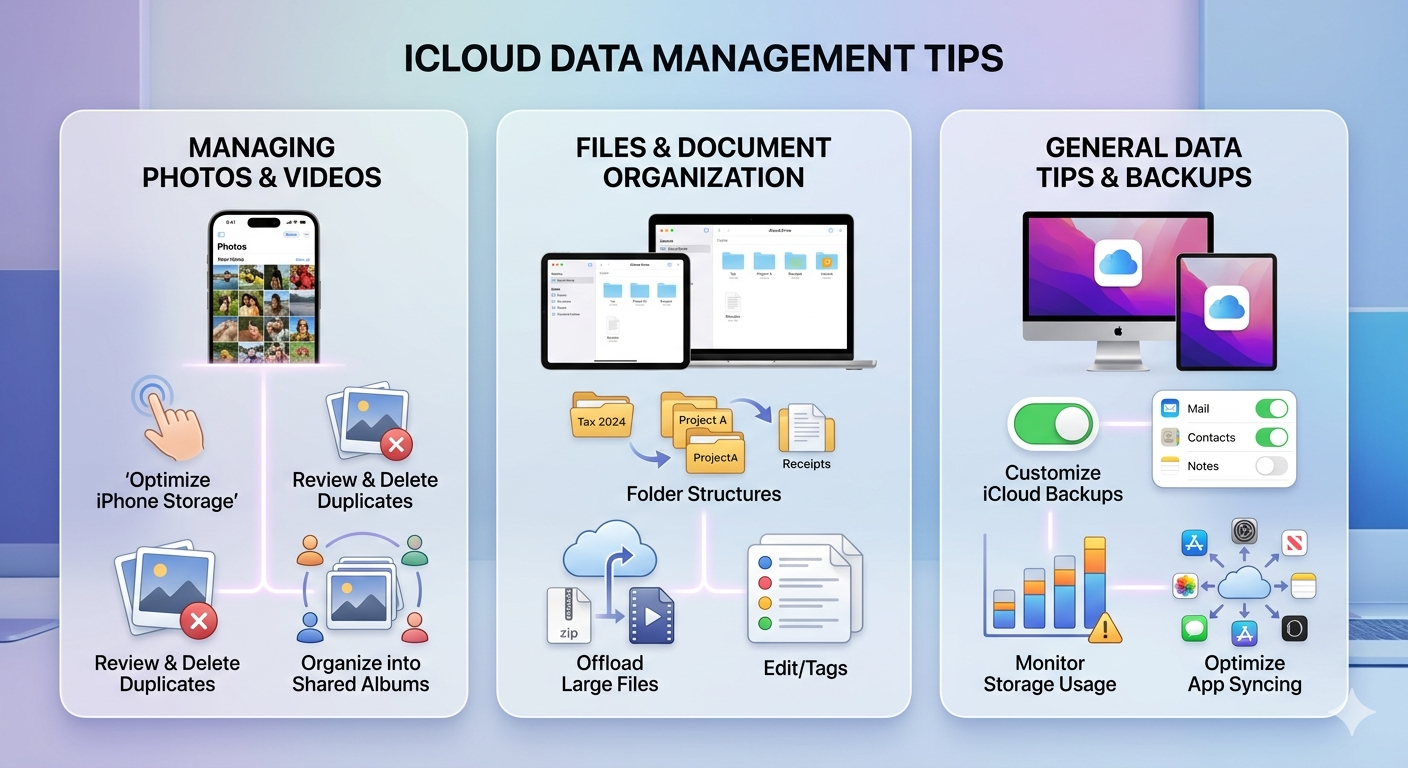
- Optimize Storage: On iPhone, go to Settings > [Your Name] > iCloud > Photos and select Optimize iPhone Storage. Full-resolution originals stay in iCloud while space-saving versions remain on-device.
- Organize with Albums and Folders: Create smart albums based on dates, people, or locations. Use search powered by AI for faces and objects.
- Delete Duplicates and Unneeded Items: Review Recently Deleted (empties after 30 days) and use the Photos app’s duplicate detection.
- Shared Albums: Share specific collections without using full library storage.
- Downloads: For iCloud downloads, access via icloud.com or the Photos app. Bulk download as ZIP files for archiving.
Regular cleanup prevents bloat. Download precious photos to a computer or external drive for extra security.
iCloud Drive: Files and Documents Management
iCloud Drive acts as your cloud file system for documents, PDFs, and other files distinct from iCloud Photos.
Effective Strategies:
- Organize with folders mirroring your local Mac Finder structure.
- Use Optimized Storage on Mac to keep only necessary files locally.
- Enable iCloud Drive in Settings and choose which apps sync (e.g., Pages, Keynote, Files app).
- Collaborate in real-time with shared folders and links.
For users managing large projects, combine with iCloud storage upgrades for seamless access.
iCloud Mail and Email Management
iCloud Mail (often called iCloud email) provides @icloud.com addresses with strong spam filtering and integration.
Management Tips:
- Use folders and rules for organization.
- Enable iCloud Mail in iCloud settings.
- Manage storage by deleting large attachments emails count toward your total iCloud storage.
- For custom domains with iCloud+, set up professional email addresses.
This keeps your inbox efficient and prevents storage surprises.
Understanding and Upgrading iCloud Storage
Apple iCloud storage starts at 5GB free. Photos, backups, files, and mail share this pool.
Apple iCloud Storage Plans (UK Pricing as of 2026)
| Plan | Storage | Monthly Price (GBP) | Best For | Key Features |
|---|---|---|---|---|
| Free | 5GB | £0 | Light users | Basic sync |
| iCloud+ | 50GB | £0.99 | Individuals | Hide My Email, Private Relay |
| iCloud+ | 200GB | £2.99 | Families, photo lovers | Family Sharing |
| iCloud+ | 2TB | £8.99 | Heavy users | Advanced privacy |
| iCloud+ | 6TB | £26.99 | Professionals | More cameras for HomeKit |
| iCloud+ | 12TB | £54.99 | Power users | Maximum capacity |
For iCloud com storage management, visit icloud.com and review usage.
How to Delete Old Backups on iCloud
Device backups are major space hogs. Here’s how to delete old backups on iCloud safely:
On iPhone/iPad:
- Go to Settings > [Your Name] > iCloud > Manage Account Storage > Backups.
- Select the device backup.
- Tap Turn Off & Delete from iCloud (or Delete Backup).
This frees space without affecting current device data. Always back up your active device first. Delete backups from old phones you no longer use.
On Mac: System Settings > Apple ID > iCloud > Manage > Backups.
Advanced Data Management Tips
- Security Best Practices: Use strong passwords, enable 2FA, and monitor signed-in devices at appleid.apple.com. Regularly review iCloud login Find (Find My) for device tracking.
- Cross-Device Sync: Ensure iCloud Drive and Photos sync consistently.
- iCloud UK Users: Local pricing and support align with EU/UK regulations for data privacy.
- Automation: Use Shortcuts app for bulk actions or third-party tools (carefully) for deeper analysis.
- Archiving Strategy: Download full libraries periodically to external drives for redundancy. iCloud excels at active access, not sole long-term archive.
Common Challenges and Solutions
Users often struggle with iCloud login photos access or unexpected storage use. Check iCloud storage breakdown in Settings to identify culprits (usually Photos or Backups).
For iCloud downloads, prioritize important files first to avoid bandwidth issues.
FAQ: iCloud Photos, Files, and Data Management
1. How do I perform iCloud sign in on a new device?
Go to Settings > Sign in with your Apple ID (iCloud login email). Enable desired features like Photos and Drive.
2. What are the current Apple iCloud storage plans UK?
Options range from 50GB (£0.99/mo) to 12TB. See the table above or apple.com/uk for latest details.
3. Does deleting photos from iCloud Photos remove them everywhere?
Yes it’s a sync service. Download copies first if needed.
4. How can I free up iCloud storage quickly?
Delete old backups, optimize Photos, clear Messages attachments, and empty Recently Deleted.
5. Is iCloud Drive the same as iCloud Photos?
No. iCloud Drive handles general files; iCloud Photos specializes in media libraries.
6. How do I access iCloud login Find My features?
Through the Find My app or icloud.com. Requires iCloud sign in.
7. Can I use iCloud on non-Apple devices?
Limited access via icloud.com for mail, photos, and drive. Full features work best in the Apple ecosystem.
Conclusion: Take Control of Your iCloud Today
Mastering iCloud photos, files, and data management transforms potential headaches into effortless organization. By optimizing storage, securing your Apple iCloud account, and regularly maintaining backups and libraries, you protect memories and boost productivity.