 11
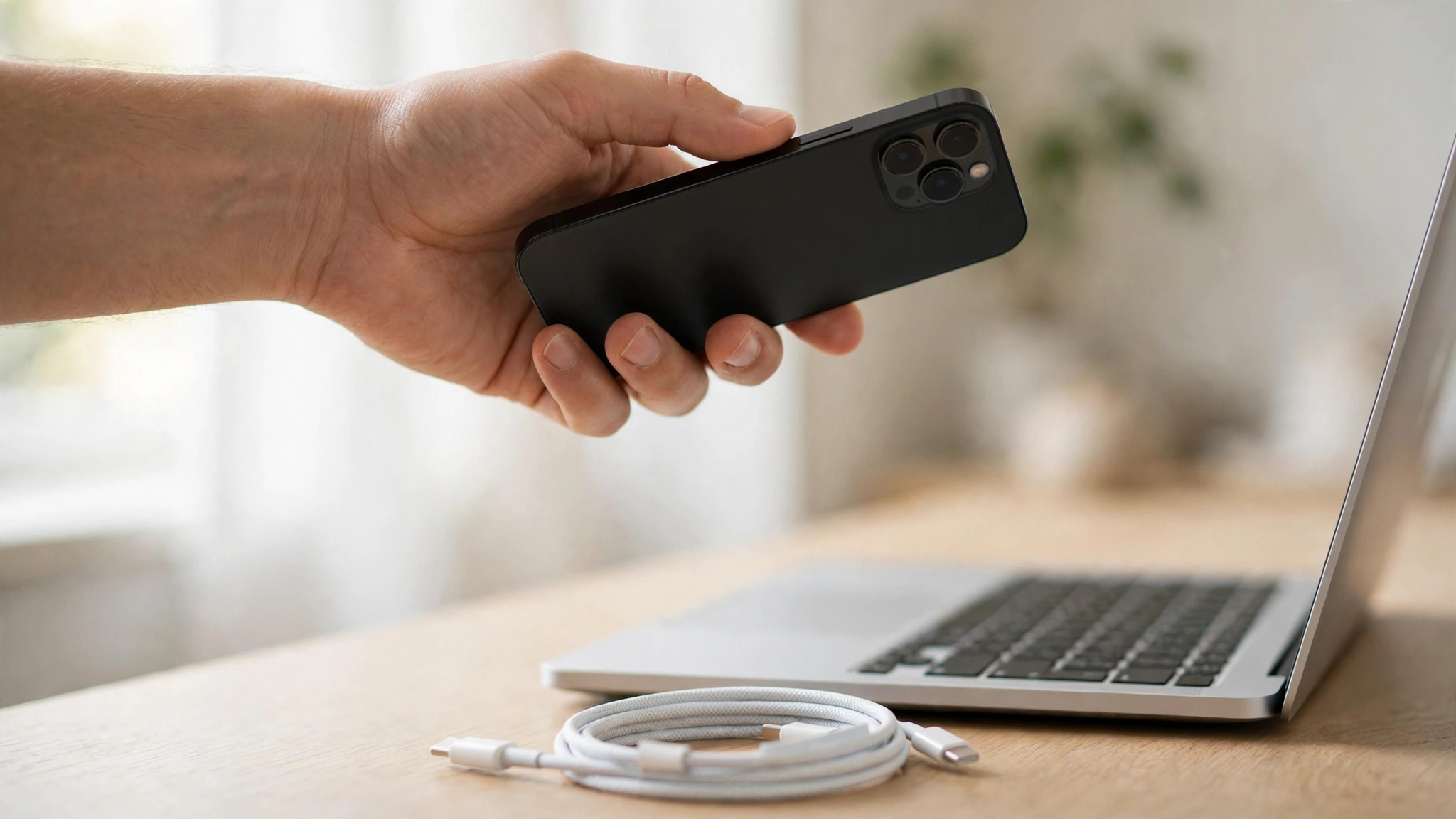
Whether you’re troubleshooting software issues, preparing to sell your device, or simply starting fresh, knowing how to reset iPhone is an essential skill for every Apple user. Depending on your goal, you may need a simple restart, a force restart, a settings reset, or a complete factory reset that erases all data.
In this comprehensive guide, we’ll explain the different types of iPhone resets, when to use each one, and how to perform them safely. We’ll also cover what to do before resetting your device and answer common questions to help you avoid losing important data.
Resetting your iPhone can help resolve many common issues, including:
The right type of reset depends on the problem you’re trying to solve.
| Reset Type | Erases Data? | Best For |
|---|---|---|
| Restart | No | Minor glitches and slow performance |
| Force Restart | No | Frozen or unresponsive iPhone |
| Reset Settings | No personal data erased | Fixing system or network settings |
| Factory Reset | Yes | Selling, trading, or starting fresh |
Understanding the difference ensures you choose the safest option.
Before performing a factory reset, take a few important steps.
Back up your iPhone using:
A backup lets you restore your photos, contacts, apps, and settings after the reset.
If you’re giving away or selling your iPhone:
This removes Activation Lock, allowing the next owner to set up the device.
You’ll likely need your device passcode and Apple Account credentials during or after the reset process.
A restart is the simplest reset and often fixes minor issues.
Press and hold the appropriate power button until the power-off slider appears, then turn the device off and back on.
If your screen is frozen or the device won’t respond, a force restart may help.
Press and hold the Volume Down button and the Side button together until you see the Apple logo.
Press and hold the Home button and the Power button together until the Apple logo appears.
A force restart does not erase your data.
If you’re experiencing software or connectivity problems but don’t want to erase your files, resetting settings may help.
To reset settings:
This resets items such as:
Your photos, apps, and personal files remain intact.
A factory reset erases everything on the device and restores it to its original settings.
To factory reset:
Depending on your settings, you may be asked to enter:
After the process completes, the iPhone will restart and display the setup screen.
If you’ve forgotten your passcode, you may need to use Recovery Mode.
The general process involves:
This erases the device, so you’ll need a backup if you want to restore your data afterward.
If you’re having trouble with Wi-Fi, Bluetooth, or cellular connectivity:
You’ll need to reconnect to Wi-Fi networks afterward.
After erasing your iPhone, you’ll see the setup assistant.
You can then choose to:
If your iPhone won’t reset, possible causes include:
Try charging the device, updating iOS, or using Recovery Mode if a normal reset doesn’t work.
Before handing over your device:
These steps help protect your personal information and prepare the iPhone for its next owner.
| Problem | Possible Solution |
|---|---|
| iPhone frozen | Force restart |
| Wi-Fi not working | Reset Network Settings |
| Apps crashing | Restart or Reset All Settings |
| Preparing to sell | Factory reset after backing up |
| Forgot passcode | Use Recovery Mode to restore |
| Device running slowly | Restart, update iOS, or factory reset if necessary |
A simple restart or force restart does not erase your data. A factory reset, however, removes all content, settings, and personal information.
Restarting simply turns the device off and back on. Resetting can refer to resetting settings or performing a factory reset, depending on the option you choose.
Yes. Restarting, force restarting, and resetting settings won’t delete your photos. A factory reset will erase them unless you’ve backed them up.
Most factory resets take 5 to 15 minutes, though the exact time depends on the device model and the amount of data stored.
In many cases, yes. If Find My iPhone is enabled, you’ll generally need your Apple Account credentials to disable Activation Lock and complete the process.
Yes. After backing up your data and signing out of your Apple Account, perform a factory reset to erase your personal information and prepare the device for the new owner.
Knowing how to reset iPhone can help you solve common software issues, improve performance, or securely prepare your device for a new owner. Whether you simply need a quick restart, a force restart for a frozen screen, or a complete factory reset, choosing the right reset method is key.
Before performing a factory reset, always back up your important data and sign out of your Apple Account if you’re selling or giving away the device. By following these steps, you can reset your iPhone confidently while protecting your information and ensuring a smooth setup afterward.