






A smartphone with an unresponsive touch screen can be incredibly frustrating. Whether your taps aren’t registering, parts of the screen don’t respond, or the display freezes completely, the issue can disrupt everything from sending messages to making calls.
The good news is that an unresponsive touch screen isn’t always caused by hardware damage. In many cases, the problem can be fixed with a few troubleshooting steps.
In this guide, you’ll learn how to fix phone screen unresponsive touch, explore the most common causes, and discover when it’s time to seek professional repair.
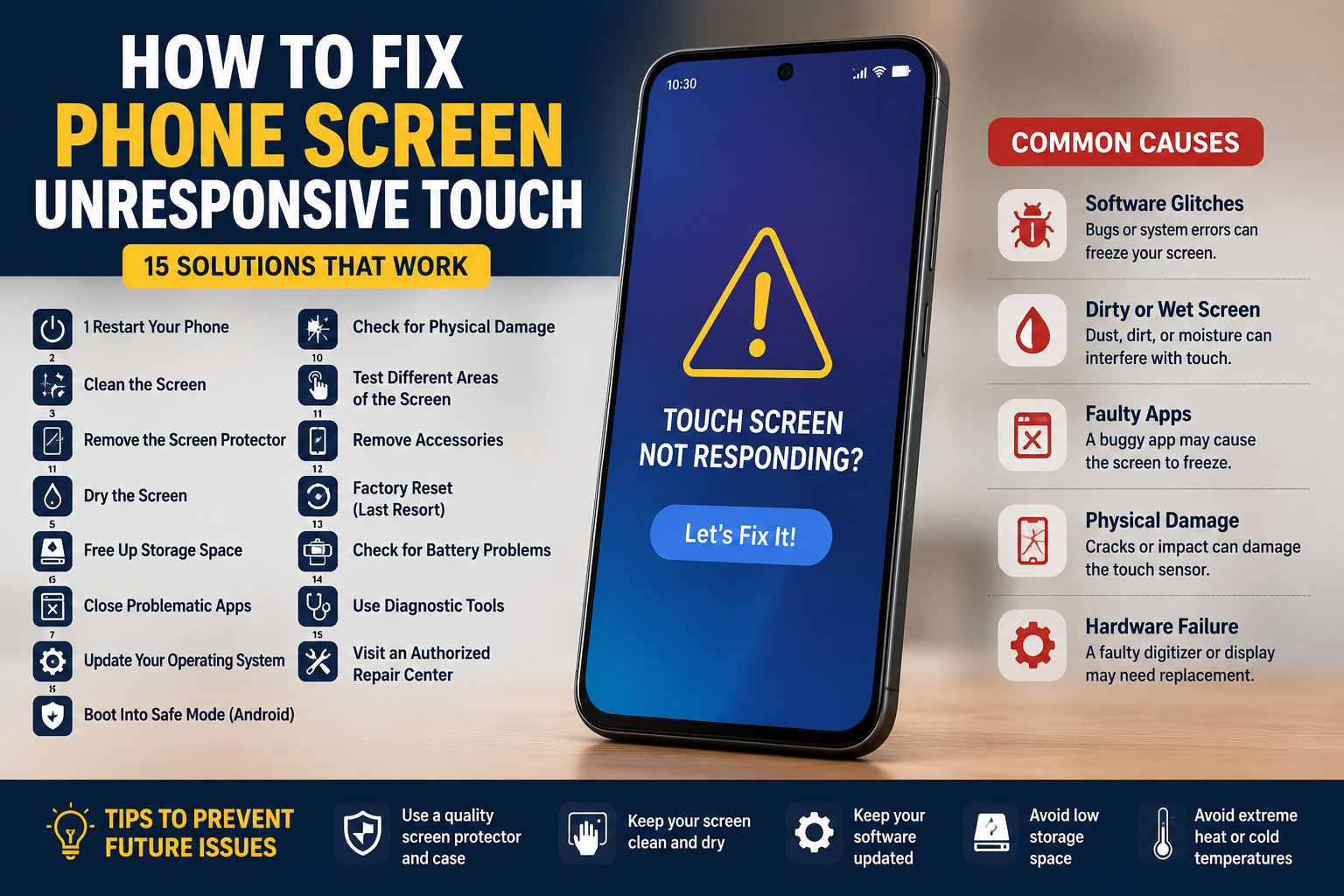
Why Is My Phone Touch Screen Not Responding?
Several factors can cause a touch screen to stop working, including:
- Software glitches
- Low available memory
- A faulty app
- Water or moisture damage
- Physical impact or cracked screen
- Dirt or oil buildup
- Screen protector issues
- Extreme temperatures
- Hardware failure
Identifying the cause is the first step toward finding the right solution.
Quick Troubleshooting Checklist
Before diving into advanced fixes, try these simple steps:
| Problem | Quick Fix |
|---|---|
| Screen frozen | Force restart the phone |
| Dirty screen | Clean it with a microfiber cloth |
| Thick screen protector | Remove or replace it |
| Wet screen | Dry the phone completely |
| App causing issues | Close or uninstall the app |
| Low storage | Free up storage space |
| Software bug | Update your operating system |
| Physical damage | Visit a repair center |
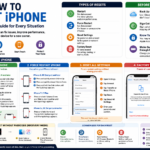
1. Restart Your Phone
A temporary software glitch is one of the most common reasons a touch screen stops responding.
Android
- Hold the Power button.
- Tap Restart.
If the screen doesn’t respond:
- Hold Power + Volume Down for about 10–20 seconds (this may vary by manufacturer).
iPhone
- Press the appropriate button combination for your model to force restart:
- iPhone 8 or later: Press and quickly release Volume Up, then Volume Down, then press and hold the Side button until the Apple logo appears.
- iPhone 7/7 Plus: Hold Volume Down + Side button.
- iPhone 6s or earlier: Hold Home + Power.
A force restart often resolves temporary software issues without affecting your data.
2. Clean the Screen
Touch screens rely on detecting your finger. Dirt, grease, or moisture can interfere with this.
Use:
- A clean microfiber cloth
- Screen-safe cleaning solution (if needed)
Avoid:
- Paper towels
- Abrasive cleaners
- Excess liquid sprayed directly onto the phone
3. Remove the Screen Protector
A damaged, low-quality, or poorly installed screen protector can reduce touch sensitivity.
Try:
- Removing the protector.
- Testing the screen.
- Replacing it with a high-quality tempered glass protector if needed.
4. Dry the Screen
Water droplets can cause ghost touches or make the screen seem unresponsive.
If your phone has gotten wet:
- Turn it off if possible.
- Wipe it dry with a soft cloth.
- Let it dry completely before charging or using it again.
Even water-resistant phones can experience touch issues if moisture remains on the screen.
5. Free Up Storage Space
Low storage can slow down your device and affect responsiveness.
Delete:
- Large videos
- Unused apps
- Duplicate photos
- Downloads you no longer need
Aim to keep some free storage available for smooth performance.
6. Close Problematic Apps
If the issue began after opening a specific app:
- Close the app.
- Reopen it.
- Update it.
- Uninstall and reinstall it if necessary.
A buggy app can sometimes freeze the entire touch interface.
7. Update Your Operating System
Software updates often include bug fixes and performance improvements.
Check for updates:
Android
- Settings > System > Software Update (menu names vary by brand)
iPhone
- Settings > General > Software Update
Install any available updates, especially if you’re experiencing widespread touch issues after an older software version.
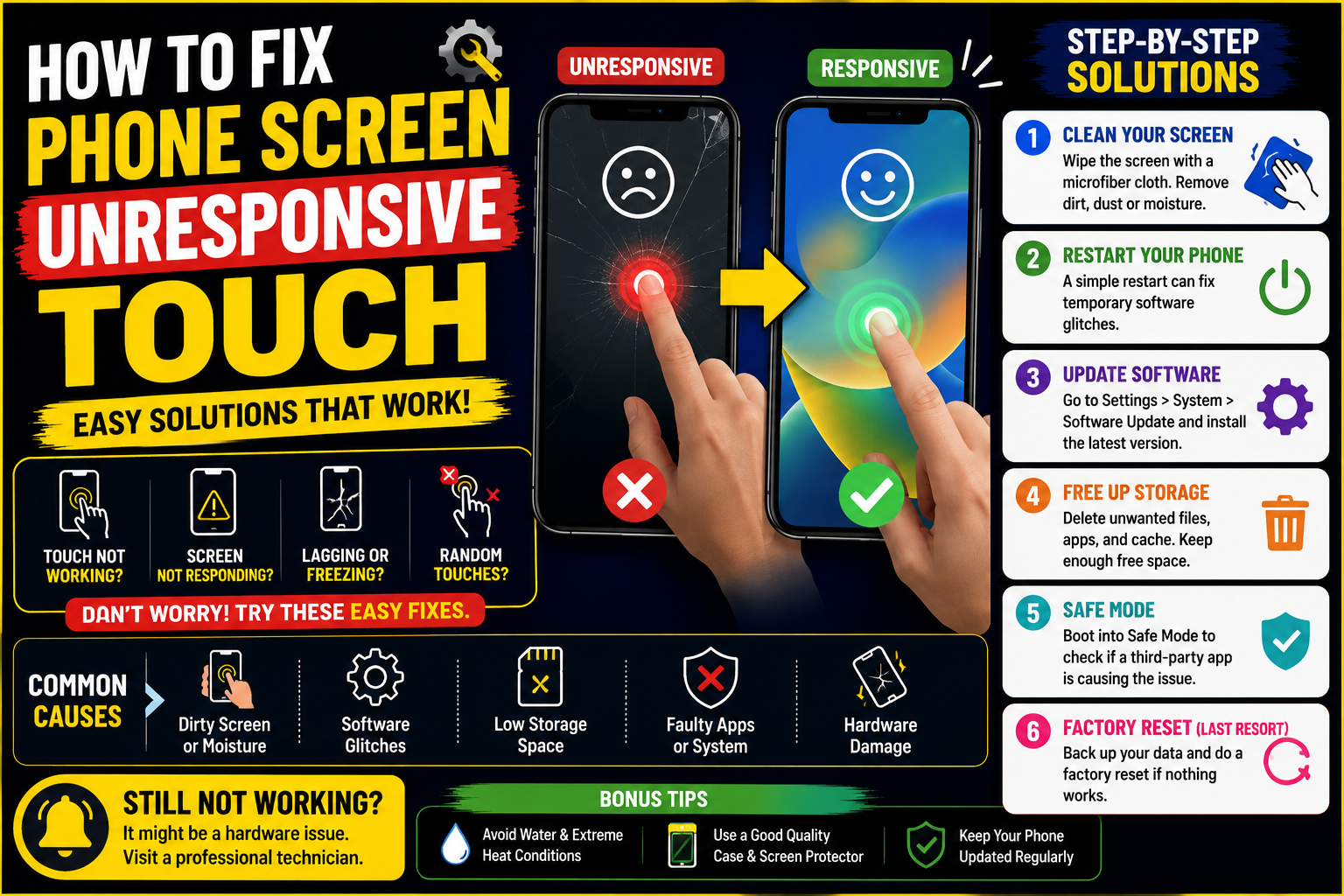
8. Boot Into Safe Mode (Android)
If a third-party app is causing the problem, Safe Mode can help diagnose it.
While the exact steps vary by manufacturer, Safe Mode generally starts the phone with only system apps.
If the touch screen works normally in Safe Mode, a recently installed app may be responsible.
9. Check for Physical Damage
Inspect your phone for:
- Cracks
- Bent frame
- Swollen battery
- Loose display
- Water indicators (if accessible)
Physical damage often points to a hardware issue that software fixes won’t resolve.
10. Test Different Areas of the Screen
Sometimes only part of the screen stops responding.
Try:
- Typing across the keyboard.
- Dragging icons around the screen.
- Using a drawing app to trace lines.
If one section consistently fails to respond, the digitizer or display assembly may need replacement.
11. Remove Accessories
Cases or magnetic accessories can occasionally interfere with touch input or accidentally press buttons.
Remove:
- Thick phone cases
- Magnetic mounts
- External accessories
Then test the screen again.
12. Factory Reset (Last Resort)
If software corruption is suspected and other fixes haven’t worked, a factory reset may help.
Important: Back up your data first, as this process erases all personal information from the device.
Only perform a factory reset after you’ve ruled out simpler solutions.
13. Check for Battery Problems
An aging or swollen battery can cause various issues, including display problems.
Warning signs include:
- Battery bulging
- Screen lifting away from the frame
- Excessive heat
- Rapid battery drain
If you notice any of these, stop using the phone and have it inspected by a qualified repair technician.
14. Use the Manufacturer’s Diagnostic Tools
Many phone brands include built-in diagnostic tools or support apps to test hardware components.
These tools can help identify whether the issue is related to the display, touch sensor, or another component.
15. Visit an Authorized Repair Center
If none of the troubleshooting steps work, the problem may involve:
- A damaged digitizer
- A faulty display
- A loose display connector
- Internal hardware damage
An authorized repair center can diagnose the issue and recommend the appropriate repair.
Common Causes of an Unresponsive Touch Screen
| Cause | Likelihood | Solution |
|---|---|---|
| Software bug | High | Restart or update the phone |
| Dirty screen | High | Clean the display |
| Faulty app | Medium | Remove or update the app |
| Screen protector | Medium | Replace or remove it |
| Water damage | Medium | Dry the device and assess for damage |
| Physical damage | High | Professional repair |
| Faulty display hardware | Medium | Screen replacement |
| Low storage | Medium | Free up storage space |
Tips to Prevent Future Touch Screen Problems
- Use a quality screen protector.
- Keep your screen clean.
- Avoid exposing your phone to extreme heat or cold.
- Keep your software updated.
- Don’t overload your device with unnecessary apps.
- Use a protective case to reduce damage from drops.
- Keep your phone away from water unless it’s designed for immersion.
FAQs
1. Why is my phone screen on but not responding to touch?
This can result from software glitches, a frozen app, moisture, physical damage, or a faulty touch digitizer.
2. Can I fix an unresponsive touch screen without replacing it?
Yes. Many issues are caused by software problems or temporary glitches that can be resolved by restarting the phone, cleaning the screen, updating the software, or removing a faulty screen protector.
3. Does restarting fix touch screen problems?
Often, yes. A restart or force restart can clear temporary software issues that prevent the touch screen from responding.
4. Can water cause touch screen problems?
Yes. Even small amounts of moisture can interfere with touch detection. Dry the phone thoroughly before using it again.
5. When should I replace my phone screen?
If the display is cracked, partially unresponsive, or damaged after a drop, replacing the screen or display assembly may be necessary.
6. Can a screen protector make my phone less responsive?
Yes. A poor-quality, damaged, or improperly installed screen protector can reduce touch sensitivity.
Conclusion
Knowing how to fix phone screen unresponsive touch can save you time, money, and frustration. In many cases, simple steps like restarting your phone, cleaning the screen, updating the software, or removing a problematic screen protector are enough to restore normal operation.
If the problem persists after trying these solutions—especially if your phone has been dropped or exposed to water—the issue may be hardware-related. In that case, it’s best to have the device inspected by an authorized repair provider. Acting promptly can prevent further damage and help extend the life of your phone.