





A slow Windows startup can turn a quick task into a frustrating wait. If your computer takes several minutes to reach the desktop, freezes during boot, or struggles to load startup programs, you’re not alone. Whether you’re using Windows 11, Windows 10, or an older version, startup performance often declines over time due to unnecessary startup apps, outdated software, storage issues, or hardware limitations.
The good news is that most startup problems can be resolved without buying a new computer. In this guide, you’ll learn how to fix slow startup Windows, understand the most common causes, and discover practical solutions to get your PC booting faster again.
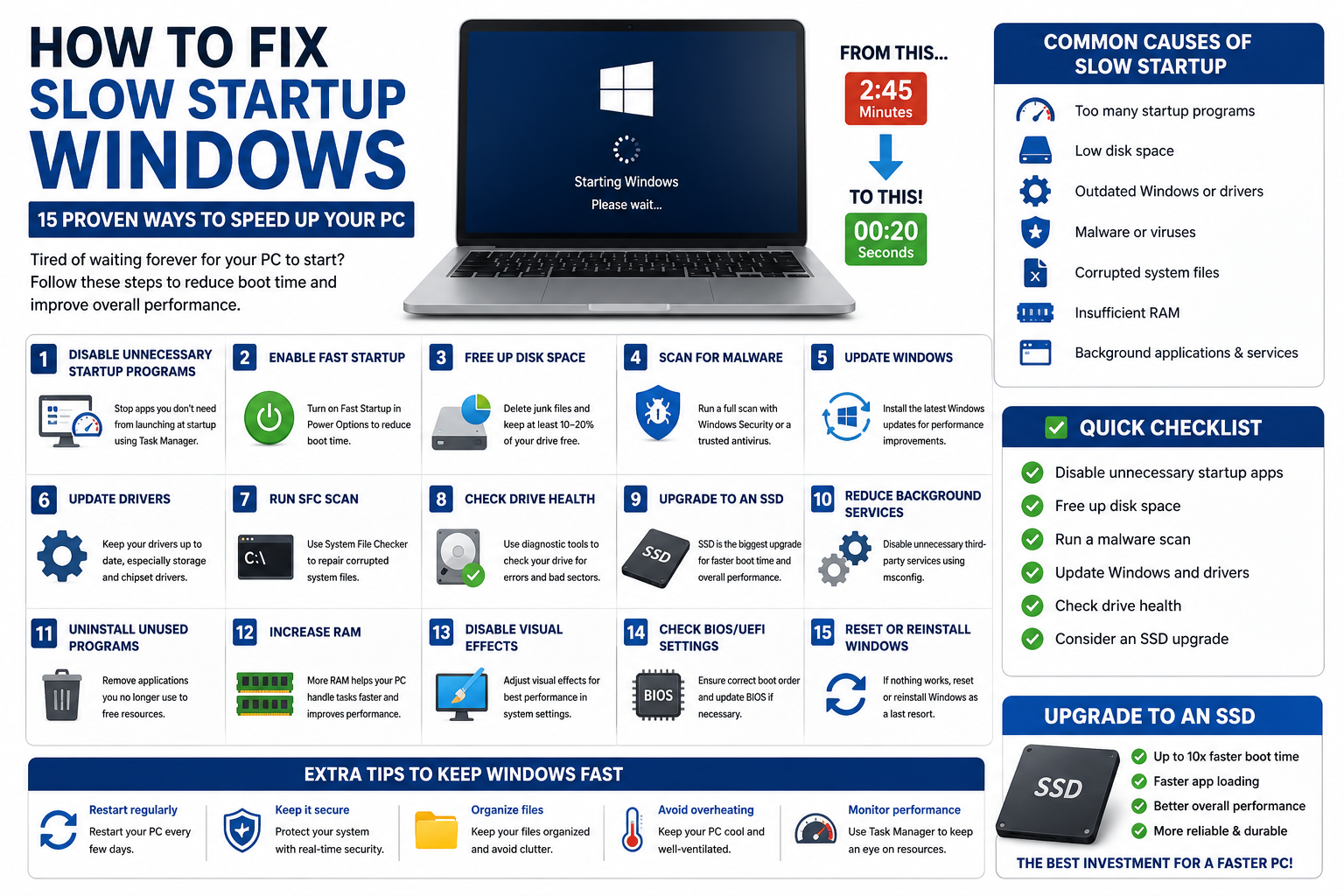
Why Does Windows Start Up Slowly?
Several factors can contribute to slow boot times:
- Too many startup programs
- Low storage space
- Traditional hard disk drive (HDD) instead of an SSD
- Outdated Windows or drivers
- Malware or viruses
- Corrupted system files
- Insufficient RAM
- Background applications and services
Identifying the root cause helps you choose the most effective fix.
Quick Troubleshooting Checklist
| Problem | Recommended Fix |
|---|---|
| Too many startup apps | Disable unnecessary startup programs |
| Low disk space | Free up storage |
| Slow HDD | Upgrade to an SSD |
| Malware infection | Run a full security scan |
| Outdated drivers | Update drivers and Windows |
| Corrupted files | Run System File Checker (SFC) |
| Too many background services | Disable non-essential services |
| Hardware limitations | Upgrade RAM or storage |
1. Disable Unnecessary Startup Programs
One of the biggest reasons Windows starts slowly is having too many applications launch automatically.
Windows 11 & Windows 10
- Press Ctrl + Shift + Esc to open Task Manager.
- Click the Startup apps tab.
- Disable programs you don’t need immediately after startup.
Common apps you can often disable include:
- Spotify
- Discord
- Zoom
- Adobe Creative Cloud
- Microsoft Teams (if unused)
- Game launchers
Only disable programs you recognize and don’t need at startup.
2. Enable Fast Startup
Windows includes a feature called Fast Startup, which combines elements of shutdown and hibernation to reduce boot time.
To enable it:
- Open Control Panel.
- Go to Power Options.
- Click Choose what the power buttons do.
- Select Change settings that are currently unavailable.
- Check Turn on Fast Startup.
- Save your changes.
Note: If you’re troubleshooting certain hardware or dual-boot issues, you may need to disable Fast Startup temporarily.
3. Free Up Disk Space
A nearly full system drive can significantly slow startup.
Delete or move:
- Temporary files
- Large downloads
- Unused applications
- Duplicate photos and videos
You can also use Disk Cleanup or Storage Sense to remove unnecessary files.
Aim to keep at least 10–20% of your system drive free for optimal performance.
4. Scan for Malware
Malware can run hidden processes that slow your PC.
Use Microsoft Defender or another trusted antivirus solution to perform a full system scan.
Remove any detected threats and restart your computer.
5. Update Windows
Microsoft regularly releases updates that include:
- Performance improvements
- Bug fixes
- Security patches
To check for updates:
- Open Settings.
- Go to Windows Update.
- Click Check for updates.
- Install any available updates.
Restart your PC after the installation completes.
6. Update Device Drivers
Outdated drivers can delay startup, especially graphics, storage, and chipset drivers.
Update drivers through:
- Windows Update
- Device Manager
- Your computer or motherboard manufacturer’s official website
Avoid downloading drivers from unknown third-party sites.
7. Run System File Checker (SFC)
Corrupted Windows system files can affect boot performance.
Open Command Prompt as an administrator and run:
sfc /scannowThe tool will scan for and repair damaged system files where possible.
8. Check Your Hard Drive Health
If you’re using an older HDD, physical wear can increase startup times.
Signs of a failing drive include:
- Clicking noises
- Frequent freezes
- Slow file access
- Boot errors
Use Windows’ built-in disk checking tools or your drive manufacturer’s diagnostic software to assess drive health.
9. Upgrade to a Solid-State Drive (SSD)
If your computer still uses a traditional HDD, upgrading to an SSD is one of the most effective ways to improve startup speed.
Typical startup times:
| Storage Type | Average Boot Time |
|---|---|
| HDD | 1–3 minutes |
| SATA SSD | 15–40 seconds |
| NVMe SSD | 10–20 seconds |
An SSD also improves application loading and overall system responsiveness.
10. Reduce Background Services
Some third-party services start automatically with Windows.
To review them:
- Press Win + R.
- Type msconfig and press Enter.
- Go to the Services tab.
- Check Hide all Microsoft services.
- Disable unnecessary third-party services.
Be cautious and avoid disabling services you’re unfamiliar with.
11. Uninstall Unused Programs
Programs you no longer use can add startup tasks and background services.
Go to:
Settings > Apps > Installed apps
Remove software you no longer need.
12. Increase RAM (If Needed)
If your PC frequently runs out of memory, adding more RAM can improve startup and multitasking performance.
General recommendations:
| Usage | Recommended RAM |
|---|---|
| Basic tasks | 8 GB |
| Productivity | 16 GB |
| Gaming & creative work | 16–32 GB |
Upgrading RAM won’t always reduce boot time dramatically, but it can improve overall responsiveness after startup.
13. Disable Visual Effects
Windows animations can slightly affect performance on older hardware.
To adjust visual effects:
- Search for Adjust the appearance and performance of Windows.
- Select Adjust for best performance, or manually disable animations while keeping features you prefer.
14. Check BIOS/UEFI Settings
Sometimes startup delays occur before Windows even begins loading.
You can:
- Ensure the correct boot drive is first in the boot order.
- Update the BIOS/UEFI if recommended by your manufacturer.
- Disable unnecessary boot devices (such as unused network boot options).
Only update the BIOS if necessary and follow the manufacturer’s instructions carefully.
15. Reset or Reinstall Windows (Last Resort)
If you’ve tried everything else and startup remains unusually slow, a Windows reset or clean installation may help.
Before resetting:
- Back up your important files.
- Ensure you have installation media or recovery options available.
- Reinstall only the applications you actually need.
This should be considered only after ruling out hardware issues.
Common Startup Problems and Solutions
| Symptom | Likely Cause | Solution |
|---|---|---|
| Black screen after boot | Driver issue | Update or reinstall drivers |
| Long login time | Too many startup apps | Disable startup programs |
| Freezing during startup | Corrupted system files | Run SFC and Windows Update |
| Constant disk activity | HDD bottleneck | Upgrade to SSD |
| Slow after Windows updates | Background optimization | Allow updates to complete, then restart |
Tips to Keep Windows Starting Fast
- Restart your computer regularly instead of leaving it running for weeks.
- Keep Windows and drivers up to date.
- Limit the number of startup applications.
- Maintain sufficient free storage space.
- Run periodic malware scans.
- Remove software you no longer use.
- Consider upgrading to an SSD if you’re still using an HDD.
FAQs
1. Why is my Windows PC taking so long to start?
Common causes include too many startup programs, insufficient storage space, outdated drivers, malware, or an aging hard drive.
2. Will disabling startup apps make my computer faster?
Yes. Reducing the number of programs that launch automatically can significantly improve startup time.
3. Is an SSD worth it for faster startup?
Absolutely. Replacing an HDD with an SSD is one of the most effective upgrades for reducing boot times and improving overall system performance.
4. Can viruses slow down Windows startup?
Yes. Malware can consume system resources and increase boot time. Running a trusted antivirus scan is recommended if you suspect an infection.
5. How often should I restart my Windows PC?
Restarting every few days or after installing updates helps clear temporary processes and can improve performance.
6. Will adding more RAM fix slow startup?
Additional RAM can improve overall responsiveness, especially if your system is memory-constrained. However, if you’re using an HDD, upgrading to an SSD typically has a greater impact on startup speed.
Conclusion
Knowing how to fix slow startup Windows can help you restore your computer’s performance without immediately investing in new hardware. Start with simple steps like disabling unnecessary startup apps, enabling Fast Startup, freeing disk space, updating Windows, and scanning for malware. If your PC still uses a traditional hard drive, upgrading to an SSD is often the single biggest improvement you can make.
By combining these best practices with regular maintenance, you can enjoy faster boot times, a more responsive system, and a smoother Windows experience for years to come.