







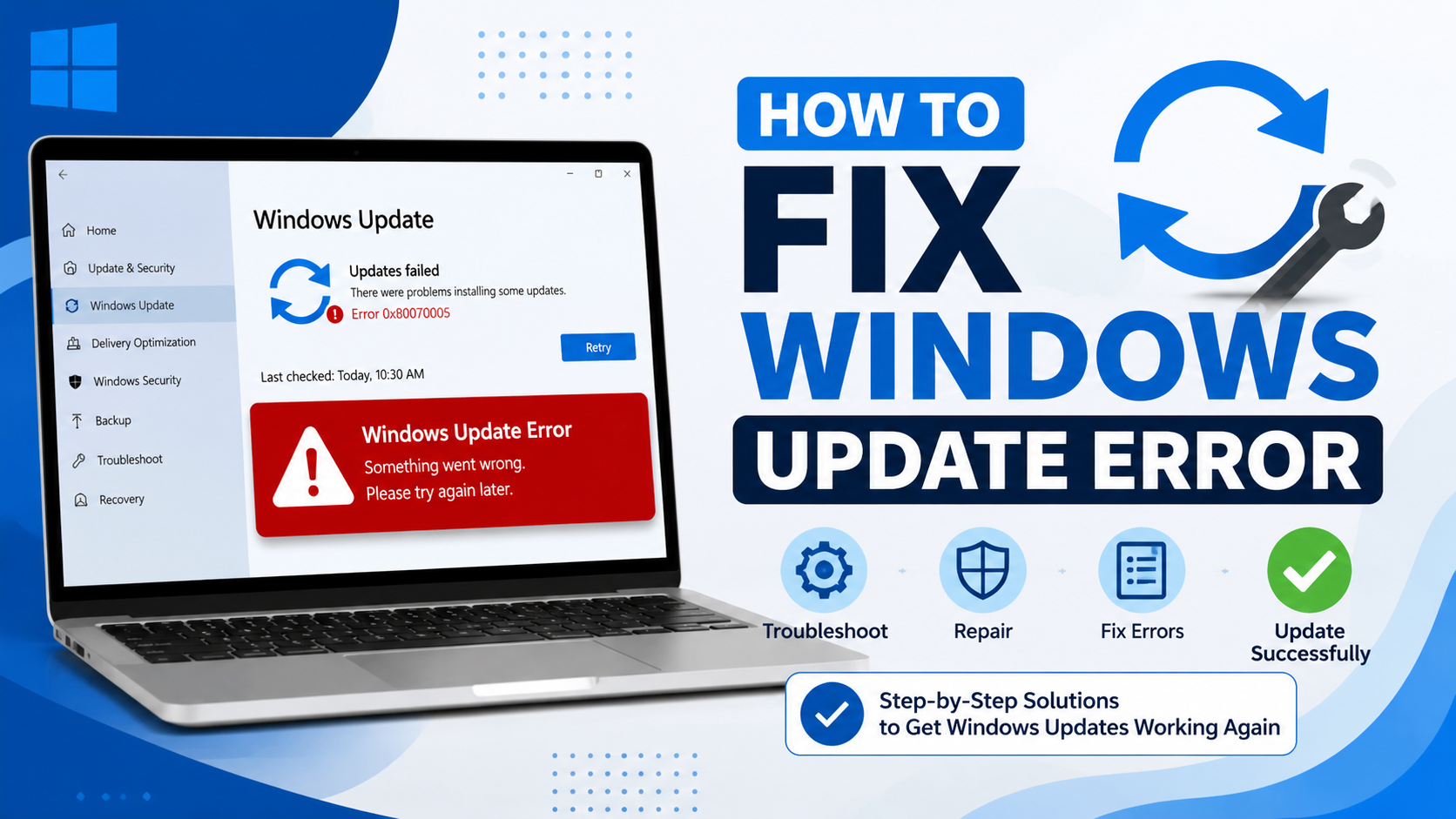
Meta Title: How to Fix Windows Update Error – Complete Step-by-Step Guide
Meta Description:
URL Slug: how-to-fix-windows-update-error
Table of Contents
ToggleHow to Fix Windows Update Error
Windows Update is essential for keeping your PC secure, stable, and equipped with the latest features. However, update failures are one of the most common issues Windows users face. Whether you’re seeing error codes like 0x80070057, 0x80070002, 0x800f0922, or simply getting stuck at “Checking for updates,” the experience can be frustrating.
The good news is that most Windows Update problems can be fixed without reinstalling Windows or seeking professional help. In many cases, the issue is caused by corrupted update files, insufficient storage, damaged system files, or temporary software conflicts.
This comprehensive guide explains how to fix windows update error using proven troubleshooting methods that work on Windows 10 and Windows 11. We’ll also explain why these errors occur, how to identify common error codes, and what you can do to prevent update issues in the future.
Why Windows Update Errors Happen
Windows Update relies on several background services, internet connectivity, system files, and available disk space. If any of these components fail, updates may stop downloading or installing.
Some of the most common causes include:
- Corrupted Windows Update cache
- Damaged system files
- Low disk space
- Internet connection interruptions
- Third-party antivirus interference
- Outdated drivers
- Incorrect system date and time
- Microsoft server issues
- Disabled Windows Update services
Understanding the cause makes troubleshooting much easier.
Common Windows Update Error Codes
| Error Code | Meaning | Typical Fix |
|---|---|---|
| 0x80070057 | Invalid parameters or corrupted update files | Reset update components |
| 0x80070002 | Missing update files | Run Windows Update Troubleshooter |
| 0x80070005 | Permission denied | Check administrator permissions |
| 0x800f0922 | Installation failure | Free disk space and check .NET Framework |
| 0x8024402F | Network interruption | Check internet connection |
| 0x80073712 | Missing system files | Run SFC and DISM scans |
| 0x80240034 | Download failure | Restart Windows Update service |
| 0x800f081f | Missing update source files | Use DISM Restore Health |
How to Fix Windows Update Error (Step-by-Step)
Below are the most effective solutions. Start from the first method and continue until the issue is resolved.
1. Restart Your Computer
It may sound simple, but many update failures occur because Windows requires a reboot before installing pending updates.
Steps:
- Save your work.
- Restart your computer.
- Open Settings → Windows Update.
- Check for updates again.
This resolves temporary software conflicts.
2. Check Your Internet Connection
Windows Update requires a stable internet connection.
Things to verify:
- Restart your router.
- Disable VPN temporarily.
- Switch to another Wi-Fi network if possible.
- Try using Ethernet instead of Wi-Fi.
- Run a speed test.
Slow or unstable internet often interrupts update downloads.
3. Free Up Disk Space
Large feature updates require several gigabytes of free storage.
To free space:
- Empty Recycle Bin.
- Delete temporary files.
- Run Disk Cleanup.
- Remove unused applications.
- Move large files to external storage.
Aim for at least 20 GB of free space before installing major Windows updates.
4. Run the Windows Update Troubleshooter
Microsoft includes a built-in troubleshooting tool.
Windows 11
- Open Settings
- System
- Troubleshoot
- Other troubleshooters
- Run Windows Update Troubleshooter
Windows 10
- Settings
- Update & Security
- Troubleshoot
- Additional troubleshooters
- Windows Update
The troubleshooter automatically repairs many update-related issues.
5. Restart Windows Update Services
Sometimes essential services stop running.
Open Command Prompt as Administrator
Run these commands:
net stop wuauserv
net stop bits
net stop cryptsvc
net stop msiserver

net start wuauserv
net start bits
net start cryptsvc
net start msiserver
Restart your PC afterward.
6. Clear Windows Update Cache
Corrupted cached files frequently cause update failures.
Steps
Stop Windows Update services:
net stop wuauserv
net stop bits
Navigate to:
C:\Windows\SoftwareDistributionDelete everything inside.
Restart services:
net start wuauserv
net start bits
Windows automatically downloads fresh update files.
7. Run System File Checker (SFC)
Damaged Windows files often prevent updates.
Open Command Prompt as Administrator.
Run:
sfc /scannowThe scan may take 10–30 minutes.
Restart the PC afterward.
8. Repair Windows Image with DISM
If SFC cannot repair everything, use DISM.
Run:
DISM /Online /Cleanup-Image /RestoreHealthThis downloads replacement system files from Windows Update.
After DISM completes:
sfc /scannowRun both tools together for best results.
9. Disable Third-Party Antivirus Temporarily
Some antivirus software blocks Windows Update.
Temporarily disable:
- Avast
- AVG
- McAfee
- Norton
- Bitdefender
Install updates.
Re-enable antivirus afterward.
Never browse the internet while antivirus protection is disabled.
10. Check Date and Time Settings
Incorrect system time can prevent secure communication with Microsoft servers.
Go to:
Settings → Time & Language
Enable:
- Set time automatically
- Set time zone automatically
Restart Windows.
11. Install the Update Manually
If automatic updates fail repeatedly:
- Note the KB number (example: KB5039212).
- Visit Microsoft’s Update Catalog.
- Download the correct version.
- Run the installer manually.
This bypasses Windows Update.
12. Perform a Clean Boot
Software conflicts can interrupt updates.
Steps:
- Press Win + R
- Type:
msconfig- Disable non-Microsoft services.
- Disable startup applications.
- Restart.
Try updating again.
13. Reset Windows Update Components Completely
If nothing works, reset every update component.
Open Command Prompt as Administrator.
Stop services:
net stop bits
net stop wuauserv
net stop appidsvc
net stop cryptsvc
Rename folders:
ren %systemroot%\SoftwareDistribution SoftwareDistribution.old

ren %systemroot%\System32\catroot2 Catroot2.old
Restart services:
net start bits
net start wuauserv
net start appidsvc
net start cryptsvc
Restart the computer.
This is one of the most effective solutions for persistent update problems.
Advanced Solutions
Update Device Drivers
Outdated drivers can prevent updates.
Focus on:
- Graphics drivers
- Storage controller drivers
- Chipset drivers
- Network drivers
Download updates directly from your PC manufacturer’s support page.
Disconnect External Devices
Remove:
- USB drives
- External hard drives
- Printers
- Docking stations
Windows sometimes encounters driver conflicts during updates.
Check Available RAM
Although Windows Update isn’t memory-intensive, systems with extremely limited RAM may struggle during feature updates.
Close unnecessary applications before updating.
Scan for Malware
Malware can interfere with Windows services.
Use:
- Windows Security
- Microsoft Defender Offline Scan
Remove threats before updating.
Verify Windows Services
Open:
services.mscEnsure these services are running:
| Service | Startup Type |
|---|---|
| Windows Update | Automatic |
| Background Intelligent Transfer Service | Automatic (Delayed Start) |
| Cryptographic Services | Automatic |
| Windows Installer | Manual |
Prevent Windows Update Errors
Preventive maintenance significantly reduces update failures.
Keep Enough Free Storage
Maintain at least 20–30 GB of free disk space.
Restart Your Computer Regularly
Avoid leaving your PC running for weeks.
Install Updates Promptly
Waiting months can cause multiple update dependencies.
Keep Drivers Updated
Manufacturers regularly release compatibility updates.
Avoid Registry Cleaners
Many registry cleaners damage Windows Update components.
Use Reliable Internet
Interrupted downloads often produce corrupted update packages.
Best Practices Before Installing Major Updates
Before installing feature updates:
- Back up important files.
- Create a System Restore Point.
- Disconnect unnecessary peripherals.
- Update BIOS only if recommended.
- Plug laptops into power.
- Close background programs.
These simple precautions reduce installation problems.
Windows 10 vs Windows 11 Update Issues
| Feature | Windows 10 | Windows 11 |
|---|---|---|
| Built-in Troubleshooter | Yes | Yes |
| Update Frequency | Monthly | Monthly |
| Feature Updates | Annual | Annual |
| Manual Installation | Supported | Supported |
| DISM Repair | Supported | Supported |
The troubleshooting process is almost identical across both operating systems.
When Should You Reinstall Windows?
A clean installation should be your last option.
Consider reinstalling Windows only if:
- Every troubleshooting method fails.
- System files remain corrupted.
- Windows crashes frequently.
- Updates fail for months.
- Malware has severely damaged the operating system.
Always back up your data first.
Internal Linking Opportunities
If you manage a technology website, consider linking this guide with related articles such as:
- How to speed up Windows 11
- Best ways to free disk space
- How to update device drivers
- How to repair corrupted system files
- Windows 11 performance optimization tips
These internal links improve user experience and SEO.
External Resources
For official troubleshooting information, refer to:
- Microsoft Windows Update documentation
- Microsoft Update Catalog
- Microsoft Support knowledge base
These trusted resources provide additional guidance for specific error codes and update packages.
FAQs
1. Why does Windows Update keep failing?
Windows Update may fail because of corrupted update files, damaged system files, insufficient storage, network interruptions, or software conflicts. Running the built-in troubleshooter and repairing system files usually resolves the issue.
2. Can I safely delete the Software Distribution folder?
Yes. Windows automatically recreates the folder the next time it checks for updates. Deleting it is a common fix for corrupted update downloads.
3. Will resetting Windows Update delete my personal files?
No. Resetting Windows Update components only clears update-related files and services. Your documents, photos, and applications remain untouched.
4. Is it safe to disable antivirus during updates?
Yes, but only temporarily. Some third-party antivirus programs interfere with Windows Update. Re-enable your antivirus immediately after the update completes.
5. How long should Windows Update take?
Most cumulative updates finish within 10 to 30 minutes. Large feature updates may take 30 minutes to over an hour, depending on your hardware and internet speed.
6. Should I install Windows updates manually?
Manual installation is useful if a specific update repeatedly fails through Windows Update. Download the correct update package from the Microsoft Update Catalog.
7. What should I do if none of these solutions work?
If you’ve tried every troubleshooting step and updates still fail, consider performing an in-place Windows repair upgrade or, as a last resort, reinstall Windows after backing up your important files.
Conclusion
Knowing how to fix windows update error can save you hours of frustration and help keep your computer secure, stable, and running efficiently. Most update issues stem from temporary glitches, corrupted cache files, damaged system files, or interrupted services, all of which can usually be resolved with built-in Windows tools like the Windows Update Troubleshooter, SFC, and DISM.
Start with the simplest solutions such as restarting your PC, checking your internet connection, and freeing up disk space before moving on to advanced methods like resetting Windows Update components. By following the preventive tips outlined in this guide, you can also reduce the chances of encountering future update problems.
Keeping Windows updated is one of the easiest ways to protect your computer from security vulnerabilities and ensure you have access to the latest features and performance improvements. If you continue experiencing issues after trying these methods, Microsoft’s official support resources or a repair installation may be the next best step.