





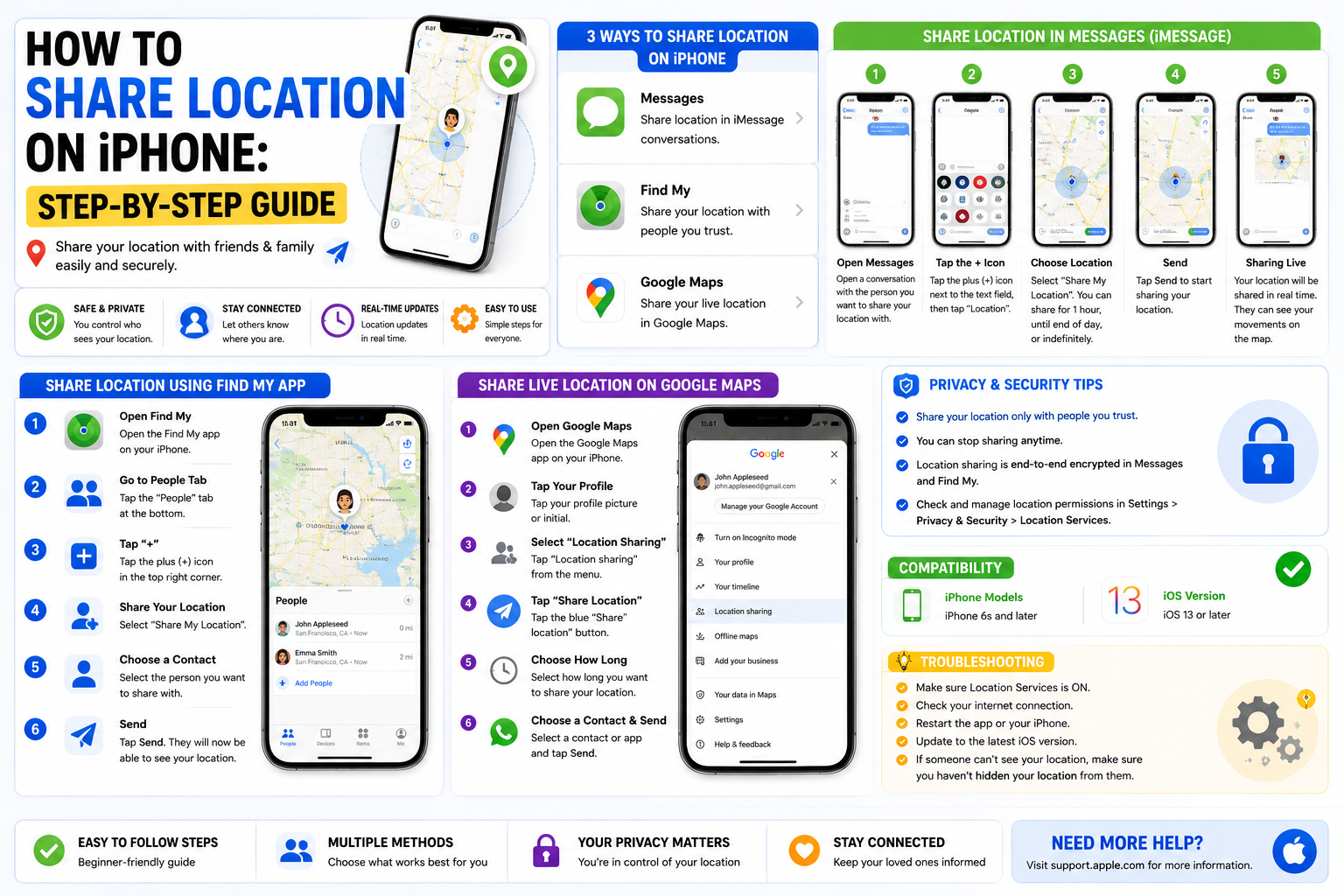
Sharing your location on an iPhone is one of the easiest ways to help friends and family find you, coordinate meetups, or let loved ones know you’re safe. Whether you’re meeting someone at a busy mall, tracking your child’s location, or sharing your live location during a road trip, Apple’s built-in tools make the process quick and secure.
If you’ve been wondering how to share location on iPhone, you’re in the right place. Modern iPhones offer multiple ways to share your location, including Find My, Messages, Apple Maps, Google Maps, and third-party apps like WhatsApp. Each method serves a different purpose, from sharing your live location for a few hours to permanently allowing trusted family members to see where you are.
This comprehensive guide explains every method step by step, covers iPhone compatibility, troubleshooting tips, privacy settings, and answers the most common questions users ask.
Why Share Your Location on iPhone?
Location sharing isn’t just about convenience it also improves safety and communication.
Common reasons include:
- Meeting friends without giving directions repeatedly
- Letting family know you’ve arrived safely
- Finding lost family members in crowded places
- Sharing your live trip during travel
- Emergency situations
- Coordinating events
- Tracking children’s locations with permission
Apple encrypts location data and gives you full control over who can view your location and for how long.
Requirements Before You Share Your Location
Before learning how to share location on iPhone, make sure:
- Location Services are enabled.
- You’re signed into your Apple ID.
- Your device has internet access (Wi-Fi or cellular).
- Find My is enabled (for live location sharing).
- The recipient has internet access.
How to Enable Location Services
Before using any location-sharing feature:
- Open Settings.
- Tap Privacy & Security.
- Select Location Services.
- Turn on Location Services.
- Scroll down and ensure apps like Find My, Messages, Maps, or WhatsApp have location permission.
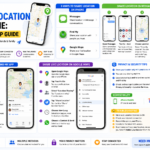
How to Share Location on iPhone Using Find My
Find My is Apple’s official location-sharing feature.
Step 1
Open the Find My app.
Step 2
Tap the People tab.
Step 3
Select Start Sharing Location.
Step 4
Choose the contact you want to share with.
Step 5
Select one of these options:
- Share for One Hour
- Share Until End of Day
- Share Indefinitely
Step 6
Tap Send.
The selected person will now be able to view your live location.
Best For
- Family members
- Trusted friends
- Long-term location sharing
How to Share Location on iPhone Through Messages
The Messages app integrates directly with Find My.
Steps
- Open Messages.
- Open an existing conversation.
- Tap the person’s profile at the top.
- Tap Share My Location.
- Choose the sharing duration.
- Confirm.
This method is perfect for quickly sharing your location with someone you’re already texting.
How to Share Your Current Location Using Apple Maps
Sometimes you only want to send your current location instead of continuous tracking.
Steps
- Open Apple Maps.
- Tap the blue location dot.
- Select Share My Location.
- Choose Messages, Mail, AirDrop, or another app.
- Send it.
The recipient receives a map link showing your location at that moment.
How to Share Location on iPhone Using Google Maps
Google Maps works well when sharing with Android users.
Steps
- Open Google Maps.
- Tap your profile picture.
- Select Location Sharing.
- Tap New Share.
- Choose the duration.
- Select contacts or copy the sharing link.
- Send it.
Google Maps updates your live location in real time.
How to Share Live Location on WhatsApp
WhatsApp supports live location sharing between iPhone and Android.
Steps
- Open WhatsApp.
- Open the conversation.
- Tap the + icon.
- Select Location.
- Tap Share Live Location.
- Choose:
- 15 minutes
- 1 hour
- 8 hours
- Tap Send.
Unlike Apple Maps, WhatsApp continuously updates your movement.
Comparison of iPhone Location Sharing Methods
| Method | Live Location | Current Location | Works with Android | Best For |
|---|---|---|---|---|
| Find My | ✅ Yes | ✅ Yes | ❌ No | Family & trusted contacts |
| Messages | ✅ Yes | ✅ Yes | ❌ iMessage only | Apple users |
| Apple Maps | ❌ No | ✅ Yes | Limited | One-time location |
| Google Maps | ✅ Yes | ✅ Yes | ✅ Yes | Mixed devices |
| ✅ Yes | ✅ Yes | ✅ Yes | Friends & family |
iPhone Models and iOS Compatibility
The methods in this guide work on most modern iPhones.
| Device | Supported |
| iPhone SE (2nd Gen & newer) | ✅ |
| iPhone 11 Series | ✅ |
| iPhone 12 Series | ✅ |
| iPhone 13 Series | ✅ |
| iPhone 14 Series | ✅ |
| iPhone 15 Series | ✅ |
| iPhone 16 Series | ✅ |
Supported iOS Versions
- iOS 16
- iOS 17
- iOS 18
- Newer versions (when available)
Older iOS versions may have slightly different menu layouts, but the overall process remains similar.
How to Stop Sharing Your Location
If you no longer want someone to see your location:
Using Find My
- Open Find My.
- Tap People.
- Select the contact.
- Tap Stop Sharing My Location.
Your location immediately becomes unavailable to that person.
How to Share Location with Family Sharing
Apple Family Sharing makes location sharing automatic.
Steps
- Open Settings.
- Tap your Apple ID.
- Select Family.
- Enable Location Sharing.
Each family member can decide whether to share their location.
How to Share Location Temporarily
If you don’t want permanent sharing:
Choose:
- One Hour
- Until End of Day
This option is available through Find My and Messages.
Troubleshooting: Why Can’t I Share My Location?
If you’re having trouble with how to share location on iPhone, try these solutions.
1. Enable Location Services
Go to:
Settings → Privacy & Security → Location Services
Ensure it’s turned on.
2. Check Internet Connection
Location sharing requires:
- Wi-Fi
- Cellular Data
Poor connectivity can prevent updates.
3. Enable Find My
Settings → Apple ID → Find My
Turn on:
- Find My iPhone
- Share My Location
4. Update iOS
Go to:
Settings → General → Software Update
Install the latest version.
5. Restart Your iPhone
Many temporary glitches disappear after restarting the device.
6. Check Screen Time Restrictions
Restrictions may block location sharing.
Navigate to:
Settings → Screen Time → Content & Privacy Restrictions
7. Sign Out and Back Into Apple ID
Refreshing your Apple account often fixes syncing problems.
Privacy and Security Best Practices
Sharing your location should always be done carefully.
Follow these recommendations:
Share Only with Trusted People
Never share your live location with strangers.
Review Shared Contacts Regularly
Open Find My occasionally to see who has access.
Disable Sharing After Events
If you’re sharing for a concert or meetup, stop sharing afterward.
Keep Your iPhone Updated
Software updates include security improvements.
Use Strong Apple ID Security
Enable:
- Two-Factor Authentication
- Face ID
- Passcode
Avoid Public Wi-Fi When Possible
Use secure networks for better privacy.
Common Mistakes to Avoid
- Forgetting to enable Location Services
- Turning off cellular data
- Disabling Find My
- Sharing indefinitely when temporary sharing is enough
- Not checking app permissions
- Ignoring software updates
Benefits of Using Apple’s Built-In Location Sharing
Apple’s ecosystem provides several advantages:
- End-to-end encryption
- Accurate GPS tracking
- Easy sharing controls
- Temporary sharing options
- Family integration
- Cross-device synchronization
Internal Linking Suggestions
If you manage a technology website, consider linking this article to related content such as:
- How to turn off location on iPhone
- How to use Find My iPhone
- How to recover a lost iPhone
- How to enable Family Sharing
- How to update iPhone to the latest iOS version
These internal links improve navigation and support SEO.
External Linking Suggestions
For additional information, you can reference official resources such as:
- Apple Support (Find My and Location Sharing)
- Apple Privacy Documentation
- Google Maps Help Center
- WhatsApp Help Center
Using authoritative sources enhances trust and helps readers access official guidance.
FAQs
1. Can I share my location with an Android phone?
Yes. You can use Google Maps or WhatsApp to share your live or current location with Android users.
2. Does location sharing drain the battery?
Live location sharing uses GPS and can increase battery consumption, especially over long periods. Using Low Power Mode may help extend battery life.
3. Can someone track my iPhone without my permission?
No. Apple requires your explicit permission before another person can view your live location. You can stop sharing at any time.
4. Why isn’t the Share My Location option available?
This usually happens when Location Services or Find My is disabled, or when you’re not signed in to your Apple ID.
5. Can I share my location for just one hour?
Yes. Find My and Messages allow you to share your location for one hour, until the end of the day, or indefinitely.
6. Is location sharing accurate?
Yes. Modern iPhones use GPS, Wi-Fi, Bluetooth, and cellular signals to provide highly accurate location information, though accuracy may vary indoors or in areas with weak signals.
7. How do I stop sharing my location?
Open the Find My app, select the contact, and tap Stop Sharing My Location. The change takes effect immediately.
Conclusion
Learning how to share location on iPhone is simple once you know which method best fits your needs. Whether you’re using Find My for continuous location sharing with family, Messages for quick updates, Apple Maps to send your current position, or apps like Google Maps and WhatsApp for cross-platform sharing, iPhone offers secure and flexible options.
Remember to enable Location Services, keep your iPhone updated, and review your sharing settings regularly to protect your privacy. By following the step-by-step instructions and best practices in this guide, you’ll be able to share your location confidently while staying in control of who can see it and for how long.