
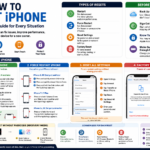






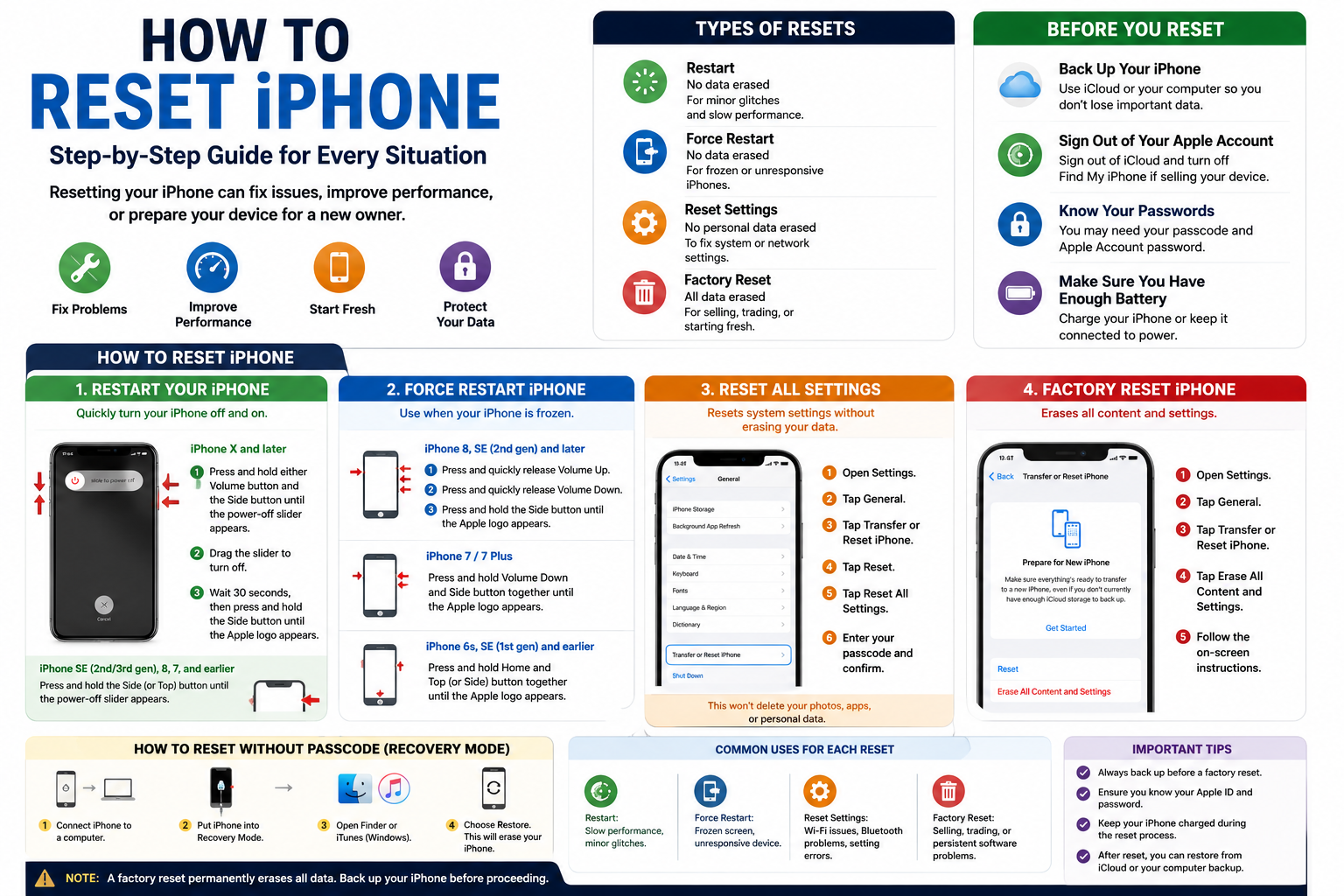
Whether you’re troubleshooting software issues, preparing to sell your device, or simply starting fresh, knowing how to reset iPhone is an essential skill for every Apple user. Depending on your goal, you may need a simple restart, a force restart, a settings reset, or a complete factory reset that erases all data.
In this comprehensive guide, we’ll explain the different types of iPhone resets, when to use each one, and how to perform them safely. We’ll also cover what to do before resetting your device and answer common questions to help you avoid losing important data.
Why You Might Need to Reset Your iPhone
Resetting your iPhone can help resolve many common issues, including:
- The iPhone is frozen or unresponsive.
- Apps keep crashing.
- The device is running slowly.
- Network or Wi-Fi problems.
- Bluetooth connectivity issues.
- Software glitches after an iOS update.
- Preparing the iPhone for resale or trade-in.
- Removing personal data before giving the phone to someone else.
The right type of reset depends on the problem you’re trying to solve.
Types of iPhone Resets
| Reset Type | Erases Data? | Best For |
|---|---|---|
| Restart | No | Minor glitches and slow performance |
| Force Restart | No | Frozen or unresponsive iPhone |
| Reset Settings | No personal data erased | Fixing system or network settings |
| Factory Reset | Yes | Selling, trading, or starting fresh |
Understanding the difference ensures you choose the safest option.
Before You Reset Your iPhone
Before performing a factory reset, take a few important steps.
Back Up Your Data
Back up your iPhone using:
- iCloud
- Finder (on newer Macs)
- Apple Devices or iTunes (on Windows or older macOS versions)
A backup lets you restore your photos, contacts, apps, and settings after the reset.
Sign Out of Your Apple Account (If Selling the Device)
If you’re giving away or selling your iPhone:
- Sign out of your Apple Account (Apple ID).
- Turn off Find My iPhone.
This removes Activation Lock, allowing the next owner to set up the device.
Make Sure You Know Your Passwords
You’ll likely need your device passcode and Apple Account credentials during or after the reset process.
Method 1: Restart Your iPhone
A restart is the simplest reset and often fixes minor issues.
iPhone X and Later
- Press and hold either Volume button and the Side button until the power-off slider appears.
- Drag the slider to turn off the iPhone.
- Wait about 30 seconds.
- Press and hold the Side button until the Apple logo appears.
iPhone SE (2nd/3rd Generation), 8, 7, and Earlier
Press and hold the appropriate power button until the power-off slider appears, then turn the device off and back on.
Method 2: Force Restart an iPhone
If your screen is frozen or the device won’t respond, a force restart may help.
iPhone 8, iPhone SE (2nd Generation), and Later
- Press and quickly release Volume Up.
- Press and quickly release Volume Down.
- Press and hold the Side button until the Apple logo appears.
iPhone 7 and 7 Plus
Press and hold the Volume Down button and the Side button together until you see the Apple logo.
iPhone 6s, iPhone SE (1st Generation), and Earlier
Press and hold the Home button and the Power button together until the Apple logo appears.
A force restart does not erase your data.
Method 3: Reset All Settings
If you’re experiencing software or connectivity problems but don’t want to erase your files, resetting settings may help.
To reset settings:
- Open Settings.
- Tap General.
- Scroll down and tap Transfer or Reset iPhone.
- Tap Reset.
- Choose Reset All Settings.
This resets items such as:
- Wi-Fi settings
- Bluetooth settings
- Keyboard dictionary
- Privacy settings
- Network settings
Your photos, apps, and personal files remain intact.
Method 4: Factory Reset Your iPhone
A factory reset erases everything on the device and restores it to its original settings.
To factory reset:
- Open Settings.
- Tap General.
- Select Transfer or Reset iPhone.
- Tap Erase All Content and Settings.
- Follow the on-screen instructions.
Depending on your settings, you may be asked to enter:
- Your device passcode
- Your Apple Account password
After the process completes, the iPhone will restart and display the setup screen.
How to Reset an iPhone Without the Passcode
If you’ve forgotten your passcode, you may need to use Recovery Mode.
The general process involves:
- Connecting the iPhone to a Mac or Windows PC.
- Putting the device into Recovery Mode using the appropriate button combination for your model.
- Using Finder or Apple Devices/iTunes to restore the iPhone.
This erases the device, so you’ll need a backup if you want to restore your data afterward.
How to Reset Network Settings
If you’re having trouble with Wi-Fi, Bluetooth, or cellular connectivity:
- Go to Settings.
- Tap General.
- Select Transfer or Reset iPhone.
- Tap Reset.
- Choose Reset Network Settings.
You’ll need to reconnect to Wi-Fi networks afterward.
What Happens After a Factory Reset?
After erasing your iPhone, you’ll see the setup assistant.
You can then choose to:
- Set up as a new iPhone
- Restore from an iCloud backup
- Restore from a computer backup
- Transfer data from another iPhone
Common Reasons an iPhone Won’t Reset
If your iPhone won’t reset, possible causes include:
- Low battery
- Software corruption
- Insufficient storage
- Recovery Mode issues
- Hardware problems
Try charging the device, updating iOS, or using Recovery Mode if a normal reset doesn’t work.
Tips Before Selling Your iPhone
Before handing over your device:
- Back up your data.
- Sign out of your Apple Account.
- Turn off Find My iPhone.
- Erase all content and settings.
- Remove any SIM card or eSIM if applicable.
- Clean the device and accessories.
These steps help protect your personal information and prepare the iPhone for its next owner.
Common Reset Issues and Solutions
| Problem | Possible Solution |
|---|---|
| iPhone frozen | Force restart |
| Wi-Fi not working | Reset Network Settings |
| Apps crashing | Restart or Reset All Settings |
| Preparing to sell | Factory reset after backing up |
| Forgot passcode | Use Recovery Mode to restore |
| Device running slowly | Restart, update iOS, or factory reset if necessary |
FAQs
1. Does resetting an iPhone delete everything?
A simple restart or force restart does not erase your data. A factory reset, however, removes all content, settings, and personal information.
2. What’s the difference between restarting and resetting an iPhone?
Restarting simply turns the device off and back on. Resetting can refer to resetting settings or performing a factory reset, depending on the option you choose.
3. Can I reset my iPhone without losing photos?
Yes. Restarting, force restarting, and resetting settings won’t delete your photos. A factory reset will erase them unless you’ve backed them up.
4. How long does an iPhone factory reset take?
Most factory resets take 5 to 15 minutes, though the exact time depends on the device model and the amount of data stored.
5. Do I need my Apple Account password to factory reset?
In many cases, yes. If Find My iPhone is enabled, you’ll generally need your Apple Account credentials to disable Activation Lock and complete the process.
6. Should I factory reset my iPhone before selling it?
Yes. After backing up your data and signing out of your Apple Account, perform a factory reset to erase your personal information and prepare the device for the new owner.
Conclusion
Knowing how to reset iPhone can help you solve common software issues, improve performance, or securely prepare your device for a new owner. Whether you simply need a quick restart, a force restart for a frozen screen, or a complete factory reset, choosing the right reset method is key.
Before performing a factory reset, always back up your important data and sign out of your Apple Account if you’re selling or giving away the device. By following these steps, you can reset your iPhone confidently while protecting your information and ensuring a smooth setup afterward.